
How to Replace Your Kindle with a Boox and Gain Android's Openness
Introduction: Unlocking a World Beyond Kindle If you've felt restricted by your Kindle's closed ecosystem, limited customization, or inability to integrate other productivity tools, you're not alone. While Kindles are

Introduction: Unlocking a World Beyond Kindle
If you've felt restricted by your Kindle's closed ecosystem, limited customization, or inability to integrate other productivity tools, you're not alone. While Kindles are excellent for straightforward reading, they often leave users wanting more freedom and flexibility. This guide will walk you through the process of replacing your Kindle with a Boox eReader, a device that offers the comfortable e-ink display you love, combined with the power and openness of the Android operating system.
By the end of this guide, you'll understand how a Boox eReader can liberate your digital reading experience, allow you to use your preferred apps for note-taking and productivity, and provide unparalleled customization, turning your eReader into a versatile hub for both leisure and work.
What is a Boox eReader? Your Gateway to Openness
Unlike Kindles, which operate on Amazon's proprietary software and keep you within their digital walls, Boox eReaders are essentially Android tablets equipped with an e-ink display. This fundamental difference means that your Boox device comes with the Google Play Store pre-installed. What does this unlock? It means you can download virtually any Android app you'd typically find on a regular tablet or phone, all while enjoying the eye-friendly benefits of an e-ink screen. From split-screen multitasking to full Bluetooth keyboard and stylus support, file management, and robust note-taking capabilities, a Boox device can do much more than just display books.
Why Make the Switch? Key Advantages Over Kindle
The decision to move from a Kindle to a Boox often comes down to a desire for greater control and functionality. Here’s what a Boox offers that Kindles typically don't:
- Liberation from Amazon's Ecosystem: With the Google Play Store, you're no longer confined to Amazon's bookstore or software. You can download and use a wide array of reading applications, including the Kindle app itself, Libby for library books, Pocket for articles, Google Play Books, and many others. This allows you to access content from various sources, all on one device.
- Beyond Reading: A True Productivity Hub: A Boox can seamlessly integrate into your daily workflow. You can install essential productivity apps like digital planners, Google Calendar, or focus timers directly on your eReader. This transforms it from a single-purpose reading device into a tool you can reach for throughout your day, enhancing both your reading habit and overall efficiency.
- Unrivaled Note-Taking Freedom: While Amazon offers the Kindle Scribe for note-taking, its capabilities are often limited to Amazon's own ecosystem and tools. Boox devices offer a far more open experience. You're free to download any preferred note-taking app, PDF annotation tool, or even a different PDF reader. This flexibility means you can customize your note-taking workflow to perfectly fit your needs, rather than adjusting to a predefined system. Boox also supports both official and many third-party styluses, giving you more choices for your writing experience.
- Customize Your Reading Experience: On a Kindle, your reading options – fonts, layouts, and display settings – are largely dictated by Amazon. With a Boox, the power is entirely in your hands. You can choose a reading app that aligns with your preferences for margins, font options, or gesture-based navigation. Even Boox's default reading application offers extensive customization, allowing you to fine-tune everything from line spacing and font weight to text alignment, color temperature, contrast, and page-turn animations. This level of personalization ensures a reading experience tailored precisely to your comfort and style.
Prerequisites for Your Transition
Before you begin setting up your new Boox eReader, ensure you have the following:
- A Boox eReader Device: Choose the model that best fits your needs.
- An Active Wi-Fi Connection: Essential for initial setup, downloading apps, and syncing content.
- A Google Account: Required to access and download apps from the Google Play Store.
- Optional: Your Existing Kindle: You might want it handy for reference or if you plan to transfer content (though most content is cloud-based).
Step-by-Step: Setting Up Your Boox for Maximum Freedom
Follow these steps to transition from your Kindle to a more open and customizable Boox eReader:
Step 1: Unbox and Initial Device Setup
Carefully unbox your new Boox eReader. Power it on and follow the on-screen prompts to complete the initial setup. This will include selecting your language, agreeing to terms and conditions, and most importantly, connecting to your Wi-Fi network. Once connected, proceed to log in with your existing Google account. This critical step grants you access to the Google Play Store, which is the heart of your Boox's flexibility.
Step 2: Explore and Install Your Essential Reading Apps
With your Google account set up, open the Google Play Store. This is where you'll find all the reading apps you need. Search for and install your favorites, such as:
- Kindle: To access your existing Amazon library.
- Libby: For borrowing books from your local library.
- Google Play Books: For content purchased from Google or uploaded PDFs.
- Pocket: To save and read articles later.
- Any other preferred reading platform: If you use Kobo, Nook, or other services, download their respective apps.
Step 3: Personalize Your Reading Experience
Once your reading apps are installed, open each one and begin customizing their settings to your liking. Most apps allow you to adjust fonts, text size, margins, and line spacing. For a truly deep dive into customization, explore Boox's default NeoReader app, if you choose to use it. It offers an extensive range of settings, from specific font weights and text alignments to color temperature, contrast, and page turn animations. Take your time to dial these in for the most comfortable reading experience.
Step 4: Integrate Productivity Tools
Beyond reading, leverage the power of Android to enhance your daily productivity. Return to the Google Play Store and download any apps that help you stay organized or focused. Consider installing:
- Digital Planning Apps: For managing your schedule and tasks.
- Google Calendar: To keep track of appointments and events.
- Focus Timers: To help you concentrate on specific tasks.
These additions will transform your Boox into a versatile device that you'll reach for beyond just reading.
Step 5: Master Note-Taking (Optional)
If note-taking is a priority, download your preferred app from the Play Store. Options include basic note apps, advanced PDF annotation tools, or specialized journaling apps. Experiment with the Boox's official stylus (if applicable to your model) or explore compatible third-party styluses to find what feels best for your writing style. The freedom to choose your tools means you can build a note-taking workflow that genuinely fits your needs.
Tips for Optimizing Your Boox Experience
To make the most of your Boox eReader, keep these tips in mind:
- App Selection: While you can download almost any Android app, prioritize those designed for reading, writing, and productivity. Apps with simpler interfaces and less animation tend to perform better on e-ink displays.
- Refresh Rate Considerations: Remember that e-ink displays have a much lower refresh rate than typical LCD or OLED screens. While suitable for static content, apps like Netflix or Instagram, which require fast screen updates, won't offer a great experience. Focus on what your Boox does best: reading, writing, and light productivity.
- Leverage Boox's Customization: Dive into the system-wide display settings. You can often adjust contrast, darken text, or fine-tune color temperature to reduce eye strain and optimize readability across all your apps.
Troubleshooting Common Transition Issues
As you adapt to your Boox, you might encounter a few minor hurdles:
- "My favorite app looks weird on e-ink!": Some Android apps aren't optimized for e-ink displays. Try adjusting the app's internal display settings or your Boox's system-wide display settings (like contrast or dark mode options) to improve readability. If an app remains problematic, consider finding an e-ink-friendly alternative.
- "It feels slower than my phone/tablet!": This is typical for e-ink devices due to their fundamental technology. They prioritize battery life and eye comfort over refresh speed. Optimize your usage for reading, note-taking, and static content, and you'll find it excels in those areas. Avoid comparing its speed to a traditional tablet or smartphone.
Conclusion: Embrace Your New Reading Era
Replacing your Kindle with a Boox eReader opens up a world of possibilities, from unparalleled reading customization to integrated productivity and genuine freedom from restrictive ecosystems. You'll gain a device that adapts to your unique workflow, offering flexibility that Amazon's Kindles simply cannot match. Embrace this new era of digital reading and discover how a Boox can empower your reading habits and beyond.
FAQ
Q: Can I still read my Amazon Kindle books on a Boox?
A: Yes, absolutely. Since Boox devices run Android and include the Google Play Store, you can simply download and install the official Kindle app to access your entire Amazon library.
Q: Is the note-taking experience truly better than a Kindle Scribe?
A: The source suggests it offers more freedom. While the Kindle Scribe is a dedicated note-taking Kindle, Boox allows you to choose any Android note-taking app, use different styluses, and integrate it into a broader workflow, making it far more flexible to fit your personal work style and preferences.
Q: Will entertainment apps like Netflix or Instagram work well on a Boox?
A: While you can technically download them from the Google Play Store, the e-ink display has a much lower refresh rate than traditional screens. This means they won't offer a great experience for dynamic content and are generally not recommended for core entertainment consumption.
Next Steps: Deep Dive into Customization
Now that your Boox is set up, consider exploring advanced customization options. Experiment with different third-party styluses, discover new reading and productivity apps, and continue fine-tuning Boox's system settings to create a truly personalized eReader experience.
Related articles
Android 17 QPR2 Beta 7.1: The Performance Relief You've Been Waiting
Android 17 QPR2 Beta 7.1: Finally Fixing the QPR1 Performance Woes Verdict: Android 17 QPR2 Beta 7.1 is a crucial and highly anticipated software update for Google Pixel users, specifically targeting and resolving the

Ditch Merge & Center: The Better Way to Align Text in Excel
Learn to use Excel's "Center Across Selection" to align text across cells without merging, avoiding common data manipulation issues. This guide provides steps to utilize this newly accessible feature and add it to your Quick Access Toolbar.

Mark Wahlberg on using AI in film ‘the right way’ and being open to
Actor Mark Wahlberg believes AI has a place in filmmaking if used responsibly for enhancement, not script generation or actor replacement. At TechCrunch Disrupt, he expressed openness to an AI likeness carrying on his legacy, managed by his family, and emphasized storytelling.

Ars Technica's Rocket Report: Your Essential Space Industry Briefing
Quick Verdict Ars Technica's Rocket Report, presented by veteran space reporter Stephen Clark, offers an invaluable and meticulously organized weekly (or similar frequency, implied by "Edition 9.15") digest of the most

AI's Confidence vs. Formal Methods' Rigor: Design Flaws & Verification
While AI accelerates code generation, formal methods remain critical for ensuring system correctness. Languages like TLA+ and tools like Quint enable developers to model and verify system designs before coding, catching subtle flaws. Quint makes formal methods more accessible with developer-friendly syntax and executability. This approach is vital for verifying AI-generated code through trace validation and model-based testing, ensuring reliability against real-world data.
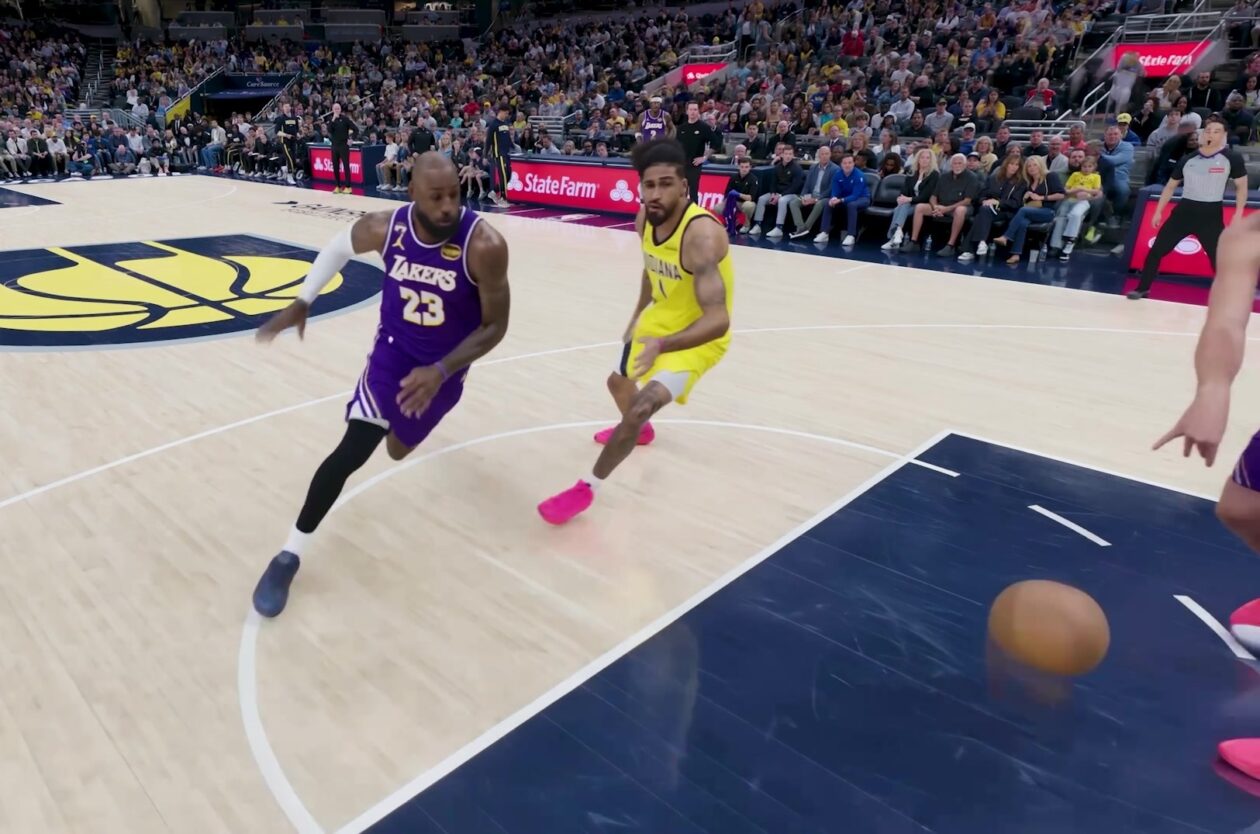
Amazon Prime Video Launches AI-Powered Prime 360 for NBA Coverage
Amazon Prime Video is elevating its NBA coverage with the introduction of Prime 360, an AI-powered replay system offering immersive, 'fly through' views of the action. Kicking off its second season, Prime Video also adds Yahoo fantasy integration and gains exclusive Eastern Conference Finals rights, expanding its tech-driven sports broadcast. The new features aim to deliver a unique and interactive viewing experience for basketball fans.