
How to Maximize Your Phone's Battery Life: 5 Simple Tweaks
Learn to significantly extend your phone's daily battery life and overall lifespan by adjusting 5 key settings in just minutes.
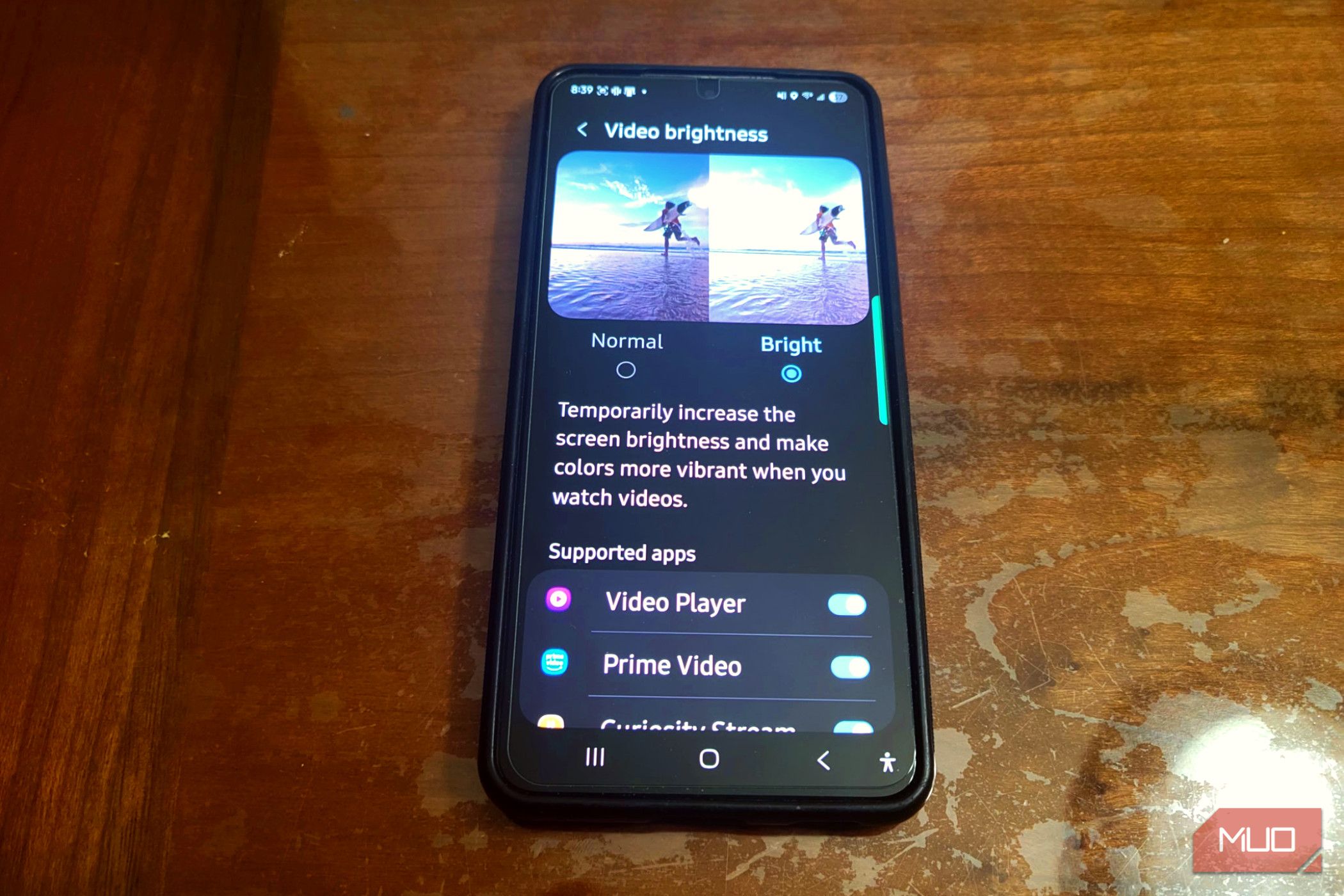
Tired of your phone's battery dying too soon? By implementing five powerful, often overlooked settings, you can significantly extend both daily battery life and your phone's overall lifespan. These simple, actionable adjustments make a real difference, helping your device last much longer on a single charge.
Prerequisites
Before you begin:
- A modern smartphone (these tips primarily benefit devices with OLED screens).
- Basic familiarity with navigating your phone's settings.
- Approximately 10 minutes to implement.
1. Schedule Dark Mode to Activate Automatically
Most modern smartphones with OLED screens save power by turning off individual pixels for black areas. Scheduling Dark Mode to activate automatically, especially during evening and nighttime hours, genuinely reduces battery drain during use, proving more effective than just being easier on the eyes.
How to Set Up Automatic Dark Mode:
- Open Settings: Access your phone's main 'Settings' app.
- Access Display: Find 'Display,' 'Screen,' or a similar section.
- Locate Dark Mode: Tap on 'Dark Mode' or 'Dark Theme.'
- Schedule It: Choose the 'Schedule' option. Set it for 'sunset to sunrise' or define custom times that suit your routine. Once configured, your phone manages it automatically.
2. Cap Your Maximum Battery Charge at 80 Percent
Capping your phone's maximum charge at 80 percent is the most effective way to extend its long-term battery health. Lithium-ion batteries degrade over time, with significant wear occurring when consistently charging past 80%. This upper range creates stress and unwanted reactions within the battery. Stopping at 80% dramatically reduces this, preserving battery materials and extending its lifespan by years.
How to Cap Your Charge:
- Navigate to Battery Settings: Go to 'Settings' and then 'Battery.'
- Find Battery Protection: Look for 'Battery Protection,' 'Charging Optimizations,' or specific manufacturer settings (e.g., 'Protect battery' on Samsung phones).
- Enable Charge Limit: Activate the option to limit maximum charge to 80% or 85%. If a built-in option isn't available, consider manually unplugging your phone once it reaches this level.
3. Turn Off or Reduce Phone Animations
System-wide animations (fades and transitions when opening apps or navigating) are cosmetic but make your phone's Graphics Processing Unit (GPU) work harder than necessary. This constant, non-essential rendering consumes battery power. Disabling or reducing these animations frees up your GPU, saving power and often making your phone feel snappier and more responsive.
How to Adjust Animations:
- Enable Developer Options (if needed): On many Android phones, go to 'Settings' > 'About phone' and tap 'Build number' seven times rapidly to unlock 'Developer Options.' (This step might vary; search online for your specific phone model).
- Access Developer Options: Return to 'Settings' and find 'Developer Options' (often under 'System' or 'Additional settings').
- Adjust Animation Scales: Locate 'Window animation scale,' 'Transition animation scale,' and 'Animator duration scale.' Set each to '.5x' for faster animations or 'Animation off' for maximum battery savings.
4. Lock Your Screen Refresh Rate to 60Hz
High refresh rate displays (90Hz, 120Hz, or higher) offer smoother visuals but demand significantly more power. A 120Hz screen requires the processor and GPU to render frames twice as frequently as 60Hz, effectively doubling their workload. This constant, increased effort translates into higher power consumption and heat, without critical functional benefit for most daily tasks like browsing or using apps.
How to Change Refresh Rate:
- Go to Display Settings: Open 'Settings' and select 'Display.'
- Find Refresh Rate Option: Look for 'Motion Smoothness,' 'Screen Refresh Rate,' or similar.
- Select 60Hz/Standard: Choose the 'Standard' or '60Hz' setting. While 'Adaptive' modes try to optimize, a fixed 60Hz provides the most consistent power savings. Many users find they quickly adjust to 60Hz and barely notice the difference after a short period.
5. Shut Off the Always-On Display (AOD)
The Always-On Display, showing time or notifications on a dimmed screen, continuously drains battery. Even with OLED screens turning off black pixels, the active elements require the display's underlying hardware to refresh constantly. This refresh cycle keeps the display driver chip powered up, preventing your phone from entering a deep sleep state when the screen is otherwise 'off.'
How to Disable Always-On Display:
- Access Display or Lock Screen Settings: Go to 'Settings' and navigate to 'Display' or 'Lock screen.'
- Locate AOD: Find the 'Always-On Display' or 'Ambient Display' option.
- Toggle Off: Simply turn this feature off. Disabling AOD allows display components to power down completely when not in use, significantly conserving power by enabling deeper device dormancy.
Troubleshooting
Can't find a specific setting? Phone manufacturers often label settings differently or place them in slightly varied locations. Use the search bar typically found at the top of your phone's 'Settings' app and type keywords like 'Dark Mode,' 'Battery Protection,' 'Animations,' 'Refresh Rate,' or 'Always-On Display' to quickly pinpoint the exact option you're looking for.
Conclusion
Implementing these five simple adjustments takes only minutes, yet offers remarkable, long-term benefits for your phone's battery life and longevity. You'll enjoy a device that lasts longer on a single charge, preserving its performance and extending its useful life without constant monitoring. Try them out on your new phone setup, or even on your current device, and experience the difference.
FAQ
Q: Will making these changes affect my phone's overall performance?
A: No, these changes are designed to optimize battery life without impacting core functionality or slowing down your essential apps. Disabling animations, in fact, can often make your phone feel snappier and more responsive.
Q: Is capping my battery charge at 80% truly safe and effective for long-term battery health?
A: Yes, the source indicates that avoiding the extreme ends of the charging cycle (below 20% and above 80%) significantly reduces stress on lithium-ion batteries, prolonging their lifespan and maintaining their capacity much longer than constantly charging to 100%.
Q: What if my phone doesn't have an 'Always-On Display' feature?
A: If you cannot find an 'Always-On Display' or 'Ambient Display' setting, your phone likely does not support this feature, or it's integrated differently. In such cases, you don't need to take any action regarding this specific tip, as your phone isn't drawing power for it.
Related articles

Apple Unveils iPhone Duo: Pricey Foldable Sees Soaring Demand
Apple has officially entered the foldable smartphone arena with the long-anticipated launch of the iPhone Duo. Priced starting at a hefty $1,999, the device features a 5.4-inch outer display and a larger 7.6-inch inner

Ditch Merge & Center: The Better Way to Align Text in Excel
Learn to use Excel's "Center Across Selection" to align text across cells without merging, avoiding common data manipulation issues. This guide provides steps to utilize this newly accessible feature and add it to your Quick Access Toolbar.

Ars Technica's Rocket Report: Your Essential Space Industry Briefing
Quick Verdict Ars Technica's Rocket Report, presented by veteran space reporter Stephen Clark, offers an invaluable and meticulously organized weekly (or similar frequency, implied by "Edition 9.15") digest of the most
Apple iPhone Duo: A Daring Debut with Notable Compromises
Apple's highly anticipated iPhone Duo, priced at $2,000, has gone on pre-order. While hailed as "Apple's most exciting device in a decade" for its innovative foldable design and immersive display, it comes with significant drawbacks like the absence of FaceID and a premium camera.

Stop Android Auto Battery Drain: Essential Features to Disable and
Android Auto offers unparalleled convenience, bringing your phone's most useful features directly to your car's display. From navigation and calls to messages and music, it keeps you connected without distracting you

TGS 2026: These Forward-Looking Cosplays Are Already Living in the
Tokyo Game Show 2026 showcased incredible cosplay, with many fans embodying characters from unreleased games like *Blast Blade* and *Mononoke No Kuni*. This gallery highlights the community's foresight, alongside debut *Palworld* cosplay and refreshed takes on classics. It’s a testament to the passion that brings gaming's future to life.