
How to Maximize Your Gaming Laptop as a Powerful Workstation
Have you ever considered that your powerful gaming laptop might be secretly yearning to tackle your workday tasks? Many high-performance gaming machines possess the robust internal components and visual fidelity that
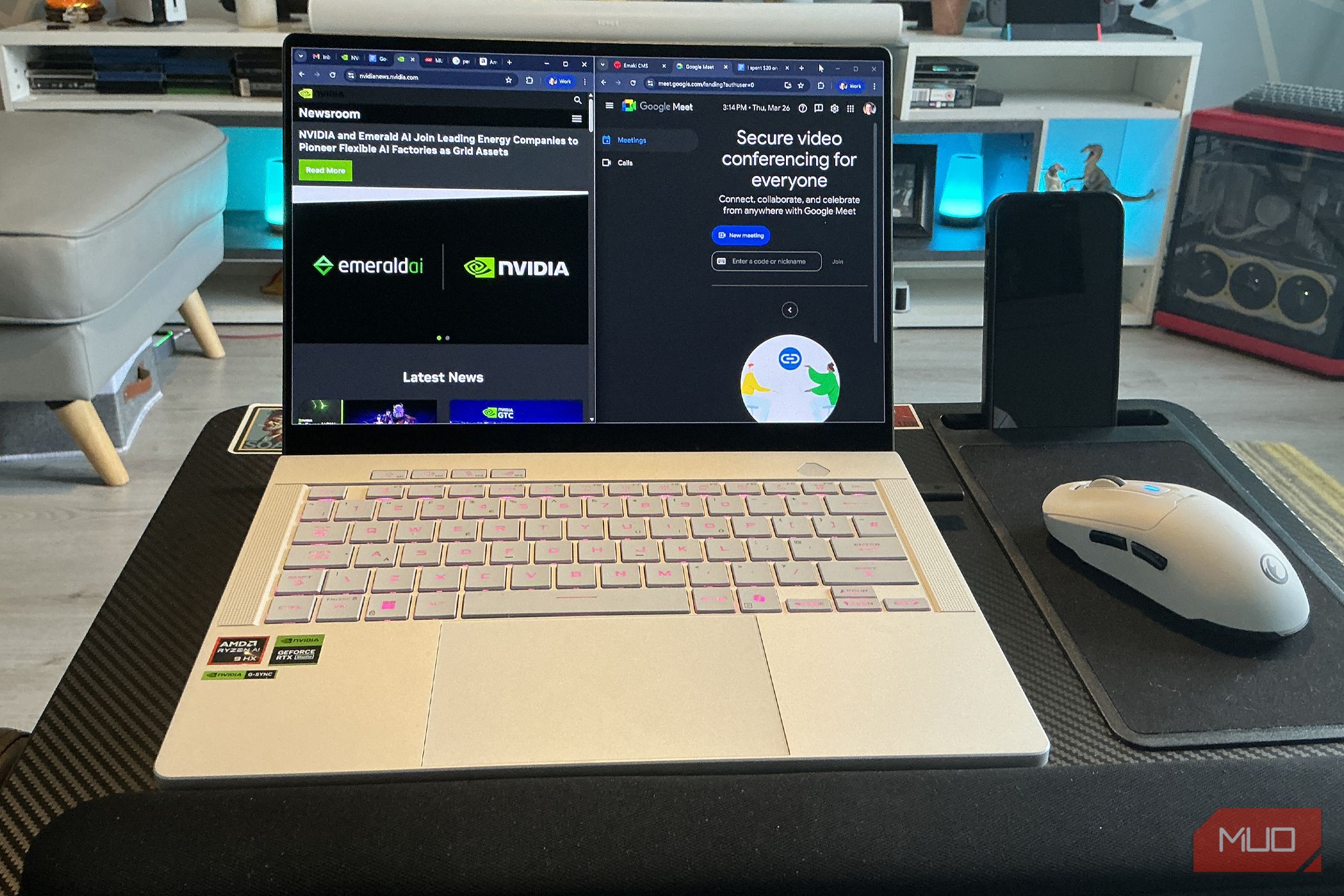
Have you ever considered that your powerful gaming laptop might be secretly yearning to tackle your workday tasks? Many high-performance gaming machines possess the robust internal components and visual fidelity that make them surprisingly effective workstations. This guide will show you how to leverage your gaming laptop's strengths to excel in productivity, creative work, and multitasking, potentially saving you the cost and space of a separate work device.
What You'll Accomplish
By following this guide, you will learn to utilize your gaming laptop's high-end specifications for demanding work tasks, such as video rendering, image editing, and heavy multitasking. You'll understand how its display and ergonomic features can enhance your productivity and learn strategies to manage its unique challenges, like battery life and fan noise, to create a seamless work experience.
Prerequisites and Requirements
To effectively use your gaming laptop as a workstation, you primarily need:
- A Gaming Laptop: While higher-end models (like one with an RTX 5080 GPU, a 12-core AMD Ryzen AI 9 HX 370 CPU, and 32GB DDR5 RAM, as mentioned in the source) offer the most significant advantages, even more affordable variants capable of 1080p/60FPS gaming can be excellent for productivity tasks like video rendering and photo editing. Your laptop should ideally have a dedicated GPU.
- Adequate RAM: For serious multitasking and creative applications, a minimum of 16GB of RAM is beneficial, with 32GB being ideal for handling numerous browser tabs and high-end image editing simultaneously.
- A Quality Display: A high-resolution, color-accurate screen (like a 2.8K OLED panel) is a major plus for creative professionals.
- Access to Power: For extended periods of demanding work, a consistent power source is crucial due to battery limitations.
Sequential Steps to Transform Your Gaming Laptop into a Workstation
Step 1: Harness Your Laptop's Raw Processing Power
Gaming laptops are built for performance, and this translates directly to workstation capabilities. The dedicated graphics card (GPU) is not just for rendering game worlds; it's a powerhouse for professional applications. For instance, a mobile RTX 5080 with 16GB of GDDR7 VRAM is excellent for rendering large 4K video files quickly. Similarly, a multi-core CPU (like an AMD Ryzen AI 9 HX 370) paired with ample DDR5 RAM (e.g., 32GB) provides the computational muscle needed to juggle multiple demanding applications, such as high-end image editing software (like Photoshop) alongside dozens of open browser tabs. Identify the core components in your gaming laptop and understand how their power can be directed towards accelerating your specific work tasks, especially those that are CPU or GPU intensive.
Step 2: Optimize Your Visual Workflow with a Superior Display
Many modern gaming laptops feature high-quality displays that are highly beneficial for productivity, especially in creative fields. A 2.8K (2800 x 1800) OLED panel, for example, offers supreme color accuracy, making it a delight for image and video editing where precise color representation is critical. Beyond resolution and color, the high refresh rates found in gaming laptops (such as 120Hz, 240Hz, or higher) significantly improve the general desktop experience. Navigating operating systems, scrolling through documents, and browsing the web feels exceptionally smooth and fluid compared to standard 60Hz displays. Even if you're not gaming, this visual fluidity can reduce eye strain and make your daily work interactions more pleasant and efficient.
Step 3: Embrace Portability and Ergonomics for Flexible Work
Contrary to older, bulkier models, many semi-modern gaming laptops boast svelte, lightweight form factors. This design makes them ideal companions for commutes and agile home office setups, where they occupy less space than traditional, thicker all-round laptops. Beyond portability, the tactile experience is often superior. Many gaming laptops sport responsive trackpads and keyboards designed for intense gaming sessions, which translates into a more friction-free experience for extensive research, typing reports, and general navigation. These ergonomic considerations contribute to a more comfortable and efficient work environment, whether you're at a desk or on the go.
Step 4: Manage Performance and Power for Peak Productivity
While gaming laptops offer immense power, they also come with specific power management considerations. For maximum performance during intensive work (like 4K video rendering or complex image editing), it’s crucial to keep your laptop plugged into a wall socket. Running demanding applications on battery power will not only deplete it rapidly but can also limit your laptop's performance as it conserves energy. Understand that gaming laptops are designed to deliver peak performance when connected to power, so prioritize a stable power source for critical tasks to ensure you get the most out of your hardware without interruption.
Troubleshooting and Important Considerations
Addressing Battery Life Limitations
One of the most significant drawbacks of using a high-end gaming laptop as a primary workstation is its typically poor battery life. Models like the RTX 5080 Zephyrus G14 may only provide less than two hours of use when unplugged, even at reasonable screen brightness levels. If your work routinely requires you to commute or depend on public power sources that are not always accessible, this limited staying power can be a major issue. For optimal performance and uninterrupted work, plan to have your laptop connected to a power outlet whenever possible, especially for demanding tasks.
Managing Heat and Fan Noise
Gaming laptops are engineered to run powerful components, which generate heat. Under heavy loads—such as running Photoshop with numerous Chrome tabs open—the fans can quickly kick into high gear, producing significant noise. This can be incredibly distracting in a quiet work environment. While it's a natural consequence of high performance, you can explore your laptop's software settings to adjust fan curves or power profiles. Some laptops offer 'silent' or 'balanced' modes that reduce fan noise by slightly limiting performance, which may be acceptable for less intensive tasks. Being aware of this characteristic allows you to plan your work environment or adjust settings as needed.
Tips for Success
- Don't Overlook Mid-Range Options: You don't necessarily need the absolute highest-end gaming laptop. More affordable variants that can run modern PC titles at 1080p/60FPS are often still perfectly capable of handling video rendering and photo editing tasks, making them a great value proposition for casual gamers who also need a work machine.
- Prioritize Staying Plugged In: For any intensive work, assume you'll need to be connected to a power outlet. This ensures consistent performance and avoids sudden battery depletion.
- Appreciate Your Display: If your gaming laptop has an OLED screen, truly leverage its supreme color accuracy for any visual tasks that require it. This is a significant advantage over many standard productivity laptops.
FAQ
Q: Can any gaming laptop function as a workstation, or do I need a high-end model?
A: While high-end models offer superior performance for demanding tasks like 4K video rendering, even more affordable gaming laptops (those capable of 1080p/60FPS gaming) can make perfectly good workstations for tasks like video rendering and photo editing. They generally offer better performance than similarly priced non-gaming laptops.
Q: What are the biggest challenges when using a gaming laptop for work?
A: The primary challenges are limited battery life, which necessitates staying plugged in for intensive work, and potentially loud fan noise when the system is under heavy load. These factors are important to consider for portability and work environment.
Q: How important is the display quality for workstation use on a gaming laptop?
A: Display quality, particularly color accuracy and resolution, is very important, especially for creative professionals. A 2.8K OLED panel, as an example, offers supreme color accuracy, making it ideal for tasks like image editing. High refresh rates also improve general desktop navigation and browsing fluidity, benefiting all users.
Next Steps
Now that you're set up to use your gaming laptop as a workstation, consider exploring related topics to further enhance your setup:
- Optimizing RAM: Learn about critical RAM specifications to ensure your laptop is a good buy for productivity.
- External Displays: Discover how laptops can sometimes outperform dual-monitor setups, or alternatively, explore why you might not need a second monitor.
- Fan Management: If fan noise becomes an issue, learn how to change specific settings to make your laptop fans quieter.
Related articles

Ditch Merge & Center: The Better Way to Align Text in Excel
Learn to use Excel's "Center Across Selection" to align text across cells without merging, avoiding common data manipulation issues. This guide provides steps to utilize this newly accessible feature and add it to your Quick Access Toolbar.

Ars Technica's Rocket Report: Your Essential Space Industry Briefing
Quick Verdict Ars Technica's Rocket Report, presented by veteran space reporter Stephen Clark, offers an invaluable and meticulously organized weekly (or similar frequency, implied by "Edition 9.15") digest of the most

Kojima Compares Divisive New Film 'Digger' to MGS2's Prescient Vision
Gaming icon Hideo Kojima has praised the divisive 2026 film *Digger*, drawing intriguing parallels to his own prophetic game, *Metal Gear Solid 2*. Both works, he explains, uniquely explore the dangers of misinformation and a fragmented digital reality, anxieties he shares with *Digger*'s director, Alejandro González Iñárritu.

Stop Android Auto Battery Drain: Essential Features to Disable and
Android Auto offers unparalleled convenience, bringing your phone's most useful features directly to your car's display. From navigation and calls to messages and music, it keeps you connected without distracting you

TGS 2026: These Forward-Looking Cosplays Are Already Living in the
Tokyo Game Show 2026 showcased incredible cosplay, with many fans embodying characters from unreleased games like *Blast Blade* and *Mononoke No Kuni*. This gallery highlights the community's foresight, alongside debut *Palworld* cosplay and refreshed takes on classics. It’s a testament to the passion that brings gaming's future to life.
Beyond the Bugs: Conquering Studio Headaches in Indie Dev
This guide, part three in a series on running an indie studio, tackles the crucial but often overlooked aspect of dealing with non-development related issues. It introduces creating a shared 'studio backlog' for collective problems and using the IDS (Identify, Discuss, Solve) framework to address them constructively. The core message is to build powerful habits that keep studios from getting quietly derailed by lingering challenges.