
How to Buy the Right HDMI to USB-C Cable - Avoid Costly Mistakes
Learn to connect an HDMI source to a USB-C monitor by understanding unidirectional cables, active conversion, and power requirements, avoiding costly mistakes in three simple steps.
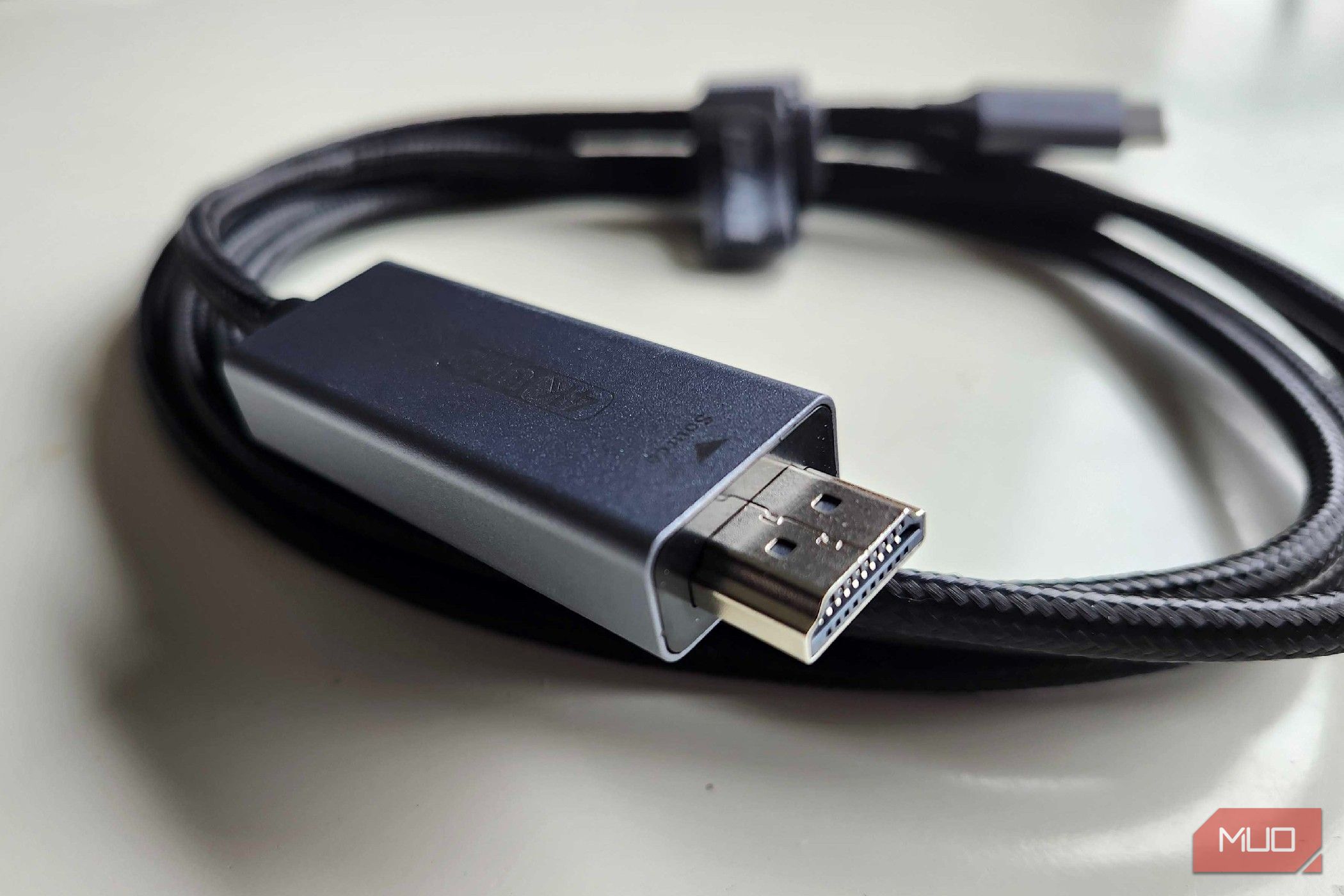
The Right Cable, Finally: Connecting HDMI Sources to USB-C Monitors
Have you ever purchased what you thought was the perfect cable, only to find it utterly useless? If you've tried connecting an HDMI-only device (like a game console or PC graphics card) to a USB-C portable monitor, you might have run into this exact frustrating scenario. It's a common trap, and one many fall into due to the subtle complexities of modern display technology. This guide is designed to save you the headache, time, and money of buying the wrong "HDMI to USB-C" cable.
After reading this guide, you will be able to:
- Understand why most off-the-shelf HDMI to USB-C cables don't work for your specific needs.
- Identify the key features to look for when purchasing a cable to connect an HDMI source to a USB-C monitor.
- Confidently select the correct cable, ensuring a working connection for your setup.
- Troubleshoot common issues if your cable isn't functioning as expected.
Let's cut through the confusion and get you connected!
Prerequisites: What You'll Need
Before you dive into buying a new cable, make sure you have the following:
- An HDMI Source Device: This could be a game console (Xbox, PlayStation), a desktop PC with an HDMI output, a laptop, or any other device that outputs video via an HDMI port.
- A USB-C Display Device: This is typically a portable monitor that accepts video input via its USB-C port (which must support DisplayPort Alt Mode).
- A Clear Understanding of Your Goal: You want to send video from HDMI to USB-C.
The Hidden Challenge: Why Most Cables Don't Work As Expected
When you pick up a standard HDMI-to-HDMI or DisplayPort-to-HDMI cable, they usually work exactly as you'd anticipate. Plug it in, and you get a picture. With HDMI to USB-C, it's a different story, and the culprit lies in a few technical distinctions:
Unidirectional vs. Bidirectional
Most common cables, like HDMI-to-HDMI, are bidirectional. This means either end can typically send or receive video and audio signals. However, many "HDMI to USB-C" cables you find in stores are unidirectional.
Crucially, the majority of these unidirectional cables are designed to send video from a USB-C source (like a laptop or phone) to an HDMI display (like a TV). They are fundamentally Type-C input and HDMI output. If you're trying to connect an HDMI console to a USB-C monitor, these cables simply won't work because they're trying to send the signal in the wrong direction.
Active Cables and DisplayPort Alt Mode
To bridge the gap between HDMI and USB-C (specifically, the DisplayPort Alt Mode that USB-C uses for video), a special conversion is needed. Cables that go from HDMI to USB-C are typically active cables. This means they contain a small chip that actively converts the HDMI signal into a DisplayPort Alt Mode signal that the USB-C display can understand. This active conversion process is what makes these cables unidirectional – they are engineered to convert the signal in one specific direction only.
The Need for External Power
This active conversion process isn't free; it requires power. While standard HDMI ports provide a small amount of power to read things like EDID data (Extended Display Identification Data), they generally don't supply enough current (around 5V) to power the conversion chip needed to transform HDMI to DisplayPort Alt Mode. This is a critical point: if you're trying to display an HDMI signal on a USB-C monitor, the cable will almost certainly need an additional power connection.
Without this external power, the conversion chip can't function, and your display will remain blank. This power connection might be a small adapter coming off the main cable or a dedicated power input directly on one of the plugs.
Step-by-Step: Choosing the Correct HDMI to USB-C Cable
Now that you understand why it's tricky, here's how to ensure you pick the right cable for your setup:
Step 1: Confirm Your Intended Signal Flow
This is the most crucial step. Clearly define what you want to connect:
- My Source: HDMI (e.g., Xbox, PS5, PC graphics card).
- My Display: USB-C (e.g., portable monitor).
Therefore, you need a cable that explicitly supports HDMI Input to USB-C Output or HDMI Source to USB-C Display. Avoid cables that only specify "HDMI to USB-C" without clarifying the direction, as they are usually the reverse.
Step 2: Look for External Power Requirements
Given that these are active conversion cables, they almost always need external power. When browsing product descriptions or looking at the cable itself, search for:
- Mentions of a power input (often a separate USB-A or USB-C port on the cable).
- A description stating it's an "active" cable or explicitly designed for HDMI to DisplayPort Alt Mode conversion.
If the cable doesn't mention external power for HDMI to USB-C conversion, it's likely the common USB-C to HDMI type, which won't work for your needs.
Step 3: Verify Resolution and Refresh Rate Support
While less common to be a primary issue, ensure the cable supports the resolution and refresh rate you intend to use. Most portable monitors are 1080p/60Hz, so a cable advertising support for at least 1080p at 60Hz should be sufficient. If you have a higher resolution or refresh rate monitor, confirm the cable can handle it to avoid bottlenecking your display.
Step 4: Read Product Descriptions Carefully
This is where many go wrong. Don't just look at the connectors. Read the entire product description, paying close attention to:
- Directional Language: Phrases like "Connects HDMI source to USB-C display" or "Allows devices with HDMI output to connect to monitors with USB-C input."
- Power Requirements: Any mention of an external power supply or a specific voltage/current needed for the conversion chip.
- Compatibility: Check if the cable explicitly lists support for your type of HDMI source and USB-C display.
Troubleshooting: When Your Cable Still Doesn't Work
Even with the right cable, issues can arise. If your display isn't working, consider these points:
- Power Connection: Is the external power connected and supplying power to the cable? This is the most common oversight for HDMI-to-USB-C cables. Ensure any required USB power cable is plugged into a reliable power source (e.g., a wall adapter, not just a low-power USB port).
- Cable Direction: Double-check that you haven't accidentally bought the wrong directional cable again. Review the packaging or product listing for clarification.
- USB-C Port Compatibility: Ensure your USB-C monitor's port actually supports DisplayPort Alt Mode for video input. Not all USB-C ports do, though most portable monitors designed for external display will.
- Display Settings: Sometimes the monitor needs to be manually switched to the correct input mode, or your source device might need to detect the new display.
Best Practices for a Smooth Setup
- Shop Online from Reputable Sellers: While big-box stores might have a limited selection, online retailers often provide more detailed product descriptions and user reviews, making it easier to find the specific unidirectional, externally-powered HDMI-to-USB-C cable you need.
- Consider Alternatives: If your portable monitor happens to have a Mini-HDMI input, using a standard Mini-HDMI to HDMI cable (which is bidirectional and doesn't require external power for conversion) might be a simpler solution. Check your monitor's ports!
- Don't Skimp on Quality: While you don't need the most expensive cable, a reliable brand can offer better build quality and more consistent performance.
FAQ
Q: Why are these cables so different from regular HDMI cables?
A: Unlike standard HDMI-to-HDMI cables which are typically bidirectional and passive, HDMI to USB-C cables (specifically for HDMI sources to USB-C displays) are active, unidirectional cables. They contain a chip to convert the HDMI signal to DisplayPort Alt Mode, which requires external power and makes them specific about the direction of the signal flow.
Q: How can I tell if a cable is the right type without plugging it in?
A: Look for clear descriptions stating "HDMI Source to USB-C Display" or "Connects HDMI output to USB-C input." Most importantly, check if it mentions requiring an external power supply for the conversion. If it just says "HDMI to USB-C" without directional clarity or power requirements, it's likely the reverse (USB-C source to HDMI display).
Q: What if my portable monitor also has a Mini-HDMI port?
A: If your portable monitor has a Mini-HDMI input, you can use a Mini-HDMI to standard HDMI cable. This is often a much simpler and more straightforward solution, as Mini-HDMI to HDMI cables are typically bidirectional and don't require the complex active conversion or external power that HDMI-to-USB-C cables do.
Next Steps
With your new cable, you can now connect your favorite consoles or PC to your portable monitor, unlocking new possibilities for gaming and productivity on the go. Explore setting up a dual-monitor portable workstation, or simply enjoy your favorite entertainment anywhere. The headaches of cable hunting are behind you, and the world of portable displays is now fully open!
Related articles

Ditch Merge & Center: The Better Way to Align Text in Excel
Learn to use Excel's "Center Across Selection" to align text across cells without merging, avoiding common data manipulation issues. This guide provides steps to utilize this newly accessible feature and add it to your Quick Access Toolbar.
Amazon Prime Video Launches AI-Powered Prime 360 for NBA Coverage
Amazon Prime Video is elevating its NBA coverage with the introduction of Prime 360, an AI-powered replay system offering immersive, 'fly through' views of the action. Kicking off its second season, Prime Video also adds Yahoo fantasy integration and gains exclusive Eastern Conference Finals rights, expanding its tech-driven sports broadcast. The new features aim to deliver a unique and interactive viewing experience for basketball fans.

Stop Android Auto Battery Drain: Essential Features to Disable and
Android Auto offers unparalleled convenience, bringing your phone's most useful features directly to your car's display. From navigation and calls to messages and music, it keeps you connected without distracting you

Turn Your Android Phone into a Powerful Desktop Replacement
Learn how to transform your Android phone into a full-fledged desktop computer using external displays and accessories, providing a cost-effective and integrated alternative to new Googlebooks.

howto: Four Ways the Fitbit Edge Is Better Than the Charge 6, and Two
Learn the key differences between the Fitbit Edge and Charge 6, including four advantages of the Edge and two areas where it falls short, to help you choose the best fitness tracker for your needs.
How to Connect Your Googlebook to a Printer - Print Documents with
Learn to quickly connect your Googlebook to a printer via Wi-Fi, USB, or Bluetooth and print documents in minutes. This guide covers direct printing, app-specific connections, troubleshooting, and even printing screenshots as a workaround.