
How to Achieve Truly Untraceable Browsing with Tails OS
Most people believe that using a browser's "Incognito Mode" or "Private Browsing" will hide their online activity. The truth is, these modes only clear your local history and cookies; your internet service provider
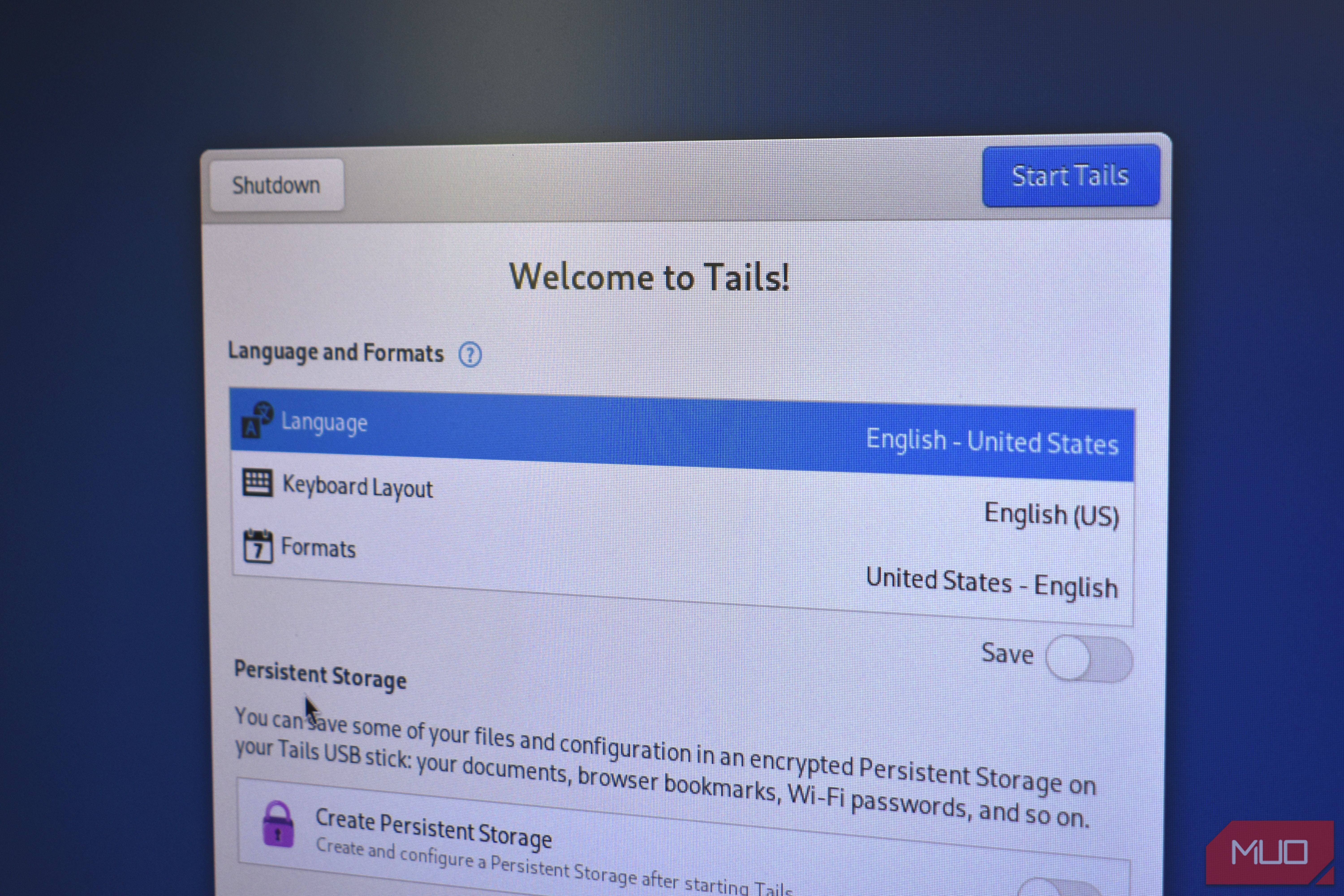
Most people believe that using a browser's "Incognito Mode" or "Private Browsing" will hide their online activity. The truth is, these modes only clear your local history and cookies; your internet service provider (ISP) can still see what you're doing, and websites can still uniquely identify your browser. If you're looking for a method that genuinely leaves no digital footprint, there's only one reliable tool: Tails OS.
Tails OS offers unparalleled security and privacy, making your browsing truly untraceable. However, this level of security comes with significant trade-offs in usability that most everyday users aren't prepared for. This guide will walk you through what Tails is, how it works, its advantages, and its key challenges, helping you decide if it's the right tool for your privacy needs.
What You'll Accomplish
By the end of this guide, you'll understand how to achieve a browsing experience that leaves absolutely no trace on the computer you use or across the internet. You'll learn about the unique capabilities of Tails OS and its practical limitations, empowering you to make informed decisions about your online privacy.
Prerequisites and Requirements
Before you embark on using Tails OS, gather the following:
- USB Stick: A USB drive with at least 8GB of storage capacity.
- Separate Device: Another computer (different from the one you intend to browse on) to download and verify the Tails image securely.
- Patience: Setting up and using Tails requires a methodical approach, especially for verification and initial configuration.
- Basic Technical Familiarity: Comfort with navigating firmware settings (BIOS/UEFI) may be required.
Understanding Tails OS: The Ultimate Privacy Tool
Tails, short for "The Amnesic Incognito Live System," is a specialized Linux operating system designed for maximum privacy and anonymity. Here’s what makes it unique:
- Live System: Tails runs entirely from a USB stick (or DVD) and loads into your computer's RAM. It doesn't install anything on your hard drive, ensuring no trace is left on the host machine once you shut down.
- Amnesia by Design: Its core feature is forgetting everything. Every time you power off, all your browsing history, downloaded files, cookies, and other data are permanently wiped. This ensures a fresh, clean slate with each session.
- Tor Network Integration: All internet traffic in Tails is automatically routed through the Tor network. Tor encrypts your connection and bounces it through multiple relay servers worldwide, masking your real IP address and making your online activity incredibly difficult to trace. Your ISP will know you're using Tor, but not what you're doing within it.
- Enhanced Security Features: Tails comes pre-loaded with essential privacy tools, including Tor Browser for anonymized web access, VeraCrypt for file encryption, and GnuPG for secure communication. It also spoofs your MAC address to prevent device tracking and contains no telemetry, meaning it never sends data back to developers without your explicit permission.
- Broad Application: While it has a reputation from past nefarious uses, Tails is a critical tool for journalists, activists, and whistleblowers operating in sensitive environments where data security is paramount.
Getting Started with Tails OS (The Setup Challenge)
Setting up Tails is a project that demands attention to detail, but it's crucial for ensuring its integrity and your security.
- Obtain a USB Stick: Ensure you have an 8GB or larger USB drive.
- Download on a Separate Device: Download the Tails OS image from the official Tails website (tails.net) on a computer you trust and are not planning to use with Tails.
- Verify the Image: This step is non-negotiable for security. Follow Tails' instructions to cryptographically verify the downloaded image. This confirms the file hasn't been tampered with and is legitimate.
- Flash the USB Drive: Use the official Tails installer to correctly write the verified image onto your USB stick. Do not skip this; proper flashing is essential.
- Address Secure Boot: Modern computers, especially those running Windows 11, often have Secure Boot enabled. This security feature can prevent Tails from loading. You may need to access your computer's firmware settings (BIOS/UEFI) to temporarily disable Secure Boot before you can boot into Tails.
Navigating Life with Tails (Usability Hurdles)
While Tails is a privacy powerhouse, its design prioritizes security over convenience, leading to several significant usability challenges for daily use:
- Complete Amnesia: The very feature that makes Tails secure – its amnesiac nature – also makes it difficult for regular browsing. Every time you boot up, you start fresh. This means no remembered passwords, bookmarks, or saved settings, requiring you to manually input everything each session.
- Tip: Tails offers a "Persistent Storage" option. This allows you to encrypt and save specific files, documents, or browser settings across sessions. However, setting this up is an additional process, and it's intentionally limited to prevent it from becoming a full-fledged, everyday operating system.
- Slow Browsing Speeds: Routing all traffic through the Tor network involves multiple encryption layers and relays, a process known as "onion routing." Each hop adds latency, making web pages load much slower than you're accustomed to (e.g., 5-10 seconds instead of 1 second). Streaming video, making video calls, or engaging in other bandwidth-intensive activities are largely impractical or impossible.
- Frequent CAPTCHAs and Site Blocks: Tor exit nodes, where your encrypted traffic re-enters the regular internet, are often flagged for unusual activity. This means you'll encounter more CAPTCHAs and may find some websites (especially those protected by services like Cloudflare) won't load at all. While technically more secure, you might be prevented from doing anything at times.
- Reboot Requirement: To use Tails, you must power down your main operating system, reboot your computer, and specifically select the Tails USB drive to boot from. You cannot run Tails alongside your regular session or simply alt-tab to it. This reboot cycle makes quick, private searches incredibly cumbersome for day-to-day tasks.
When to Reach for Tails
Tails is an impressive piece of software, but it's not designed for casual, everyday internet use. It's a specialized tool best suited for:
- High-Stakes Anonymity: When you absolutely cannot leave any digital trace on the computer you're using or have your activity linked to your real identity.
- Sensitive Communications: For secure communications or accessing highly confidential information that requires maximum privacy.
- Circumventing Censorship: In regions where internet access is heavily monitored or restricted.
For most users, a privacy-focused browser like Mullvad Browser, Brave, or even using the Tor Browser within your regular operating system (without Tails' amnesiac properties) offers a more practical balance of privacy and usability. However, having a copy of Tails OS on a USB drive in your drawer is a worthwhile emergency tool for those rare, critical moments when ultimate anonymity is required.
FAQ
Q: Is Incognito Mode truly private?
A: No, Incognito Mode primarily clears your local browsing history and cookies. Your ISP can still monitor your activity, and websites can often still track you through methods like browser fingerprinting.
Q: Can I use Tails for daily browsing activities like streaming movies or making video calls?
A: Tails routes all traffic through the Tor network, which adds significant latency and drastically slows down connection speeds. This makes bandwidth-intensive activities like streaming video, online gaming, and video calls largely impractical or impossible.
Q: What happens to my data and browsing history when I shut down Tails?
A: By design, Tails operates entirely in your computer's RAM. When you shut down Tails, all activity, browsing history, downloaded files, and temporary data are immediately and permanently wiped from the system, leaving no trace. The only exception is if you explicitly set up and use the Persistent Storage feature for specific items.
Next Steps
- Explore Privacy-Focused Browsers: If Tails is too extreme for daily use, research alternative browsers like Mullvad, Brave, or Firefox with enhanced privacy settings.
- Learn More About Tor: Understand the mechanics of the Tor network and its broader implications for online privacy and security.
- Practice with Tails: If you decide to keep Tails handy, occasionally practice booting into it and performing basic tasks so you're familiar with its operation if a critical need arises.
Related articles

Ditch Merge & Center: The Better Way to Align Text in Excel
Learn to use Excel's "Center Across Selection" to align text across cells without merging, avoiding common data manipulation issues. This guide provides steps to utilize this newly accessible feature and add it to your Quick Access Toolbar.

Secure Internal API Access for AI Agents with MCP
AI agents accessing internal APIs directly pose significant risks, including identity loss, unrestricted queries, and security bypasses. The Model Context Protocol (MCP) offers a solution by defining explicit tools. A secure architecture involves an MCP server wrapping the API with strict input validation, coupled with a gateway that handles authentication, rate limiting, and audit logging, ensuring safe and accountable access.

Stop Android Auto Battery Drain: Essential Features to Disable and
Android Auto offers unparalleled convenience, bringing your phone's most useful features directly to your car's display. From navigation and calls to messages and music, it keeps you connected without distracting you

Netflix is laying off around 1,000 employees: Layoffs — Key Details
Netflix is laying off approximately 1,000 employees, or six percent of its global workforce, in its largest-ever job cut. This move targets product, tech, HR, and legal teams to reduce costs and re-prioritize investments despite recent financial growth.

Turn Your Android Phone into a Powerful Desktop Replacement
Learn how to transform your Android phone into a full-fledged desktop computer using external displays and accessories, providing a cost-effective and integrated alternative to new Googlebooks.

howto: Four Ways the Fitbit Edge Is Better Than the Charge 6, and Two
Learn the key differences between the Fitbit Edge and Charge 6, including four advantages of the Edge and two areas where it falls short, to help you choose the best fitness tracker for your needs.