
Google Play Protect: Essential Shield or Risky Obstacle
Google Play Protect is Android's built-in security, crucial for blocking malicious apps and safeguarding user privacy. While it restricts sideloading, disabling it significantly heightens risks. Most users should keep it enabled; power users must understand the grave security trade-offs.
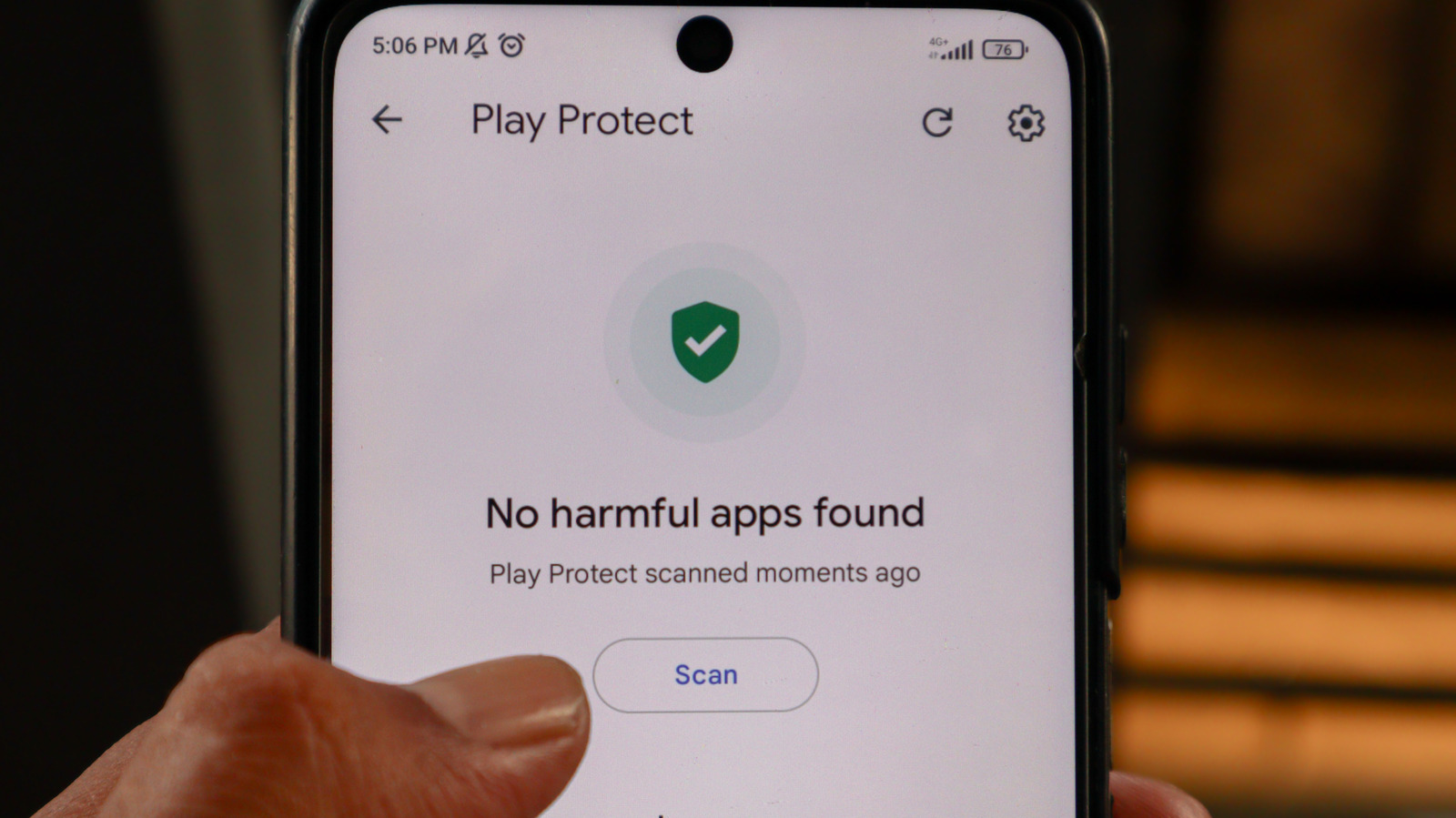
Quick Verdict
Google Play Protect serves as a critical, free, and built-in security layer for Android devices, diligently scanning for malicious apps and safeguarding user privacy. For the vast majority of users, keeping it enabled is a non-negotiable step for maintaining device security and personal data integrity. However, for a niche group of advanced users who frequently sideload applications, Play Protect's protective measures can feel restrictive. While it offers a pathway to greater app freedom, disabling it comes with significant and well-documented risks that are not to be taken lightly.
What is Google Play Protect and What Does It Do?
Launched by Google in 2017, Play Protect is designed to be your Android device's primary defense against harmful software. It operates silently in the background, providing a crucial layer of security without requiring a third-party antivirus program. Its capabilities extend far beyond a simple app scanner, encompassing a comprehensive suite of protective features:
- Pre-Installation Scanning: Before you even download an app from the Google Play Store, Play Protect scrutinizes it for potential threats, ensuring a safer download experience.
- On-Device Malware Detection: It continuously scans your device for any existing malware or potentially harmful programs, regardless of their origin – meaning it checks apps you might have acquired from sources other than the Play Store.
- Privacy Alerts: The system actively monitors apps for excessive access to personal information, issuing alerts when an application might be intruding on your privacy.
- Deceptive App Warnings: Play Protect is adept at identifying applications that mask their true function, such as those that piggyback on other installations or hide their malicious intent.
- Sideloading Safeguards: This is where Play Protect often interacts most directly with advanced users. When you attempt to sideload an app (install one from outside the official Play Store), Play Protect will warn you if the file seems malicious, and in some cases, it may outright prevent the installation or even automatically deactivate or remove such apps from your device.
Google's own statistics highlight Play Protect's significant impact. In 2025 alone, it detected over 27 million new malicious applications, either alerting users or actively blocking their execution. Furthermore, it prevented an astonishing 266 million attempts to install risky, sideloaded apps during the same year, demonstrating its active role in safeguarding the Android ecosystem.
User Experience: Freedom vs. Security
For most Android users, Google Play Protect is an unseen guardian, quietly working to keep their device safe. It provides peace of mind, knowing that a robust system is checking applications for threats, allowing users to navigate the digital world with greater confidence. The alerts it provides, whether for privacy concerns or potentially deceptive apps, empower users with information to make safer choices.
However, this powerful security comes with a trade-off that can impact a specific segment of users: those who frequently sideload apps. While intended to protect against malicious software, Play Protect's intervention in sideloading can be seen as a hindrance to freedom and customization. Users might find their attempts to install legitimate apps from alternative sources blocked, or receive persistent warnings that interrupt their workflow. This perceived restriction is the primary driver for individuals considering disabling the feature.
It's crucial to understand the implications of this choice. Disabling Play Protect means relinquishing your device's primary defense system. You will lose the crucial warnings about suspicious apps, making you significantly more vulnerable to malware infections and the installation of apps designed to steal sensitive information. The immediate freedom gained from disabling it directly correlates with a heightened risk profile for your device and personal data.
Even with Play Protect disabled, it's worth noting that Google's broader oversight might still come into play. There have been reports of Google unilaterally removing sideloaded apps it deems risky, even when the Play Protect feature has been manually switched off by the user. This suggests that while local scanning might cease, Google's server-side analysis can still impact your device's installed applications.
How to Turn Off Google Play Protect
For those who fully understand the risks and still wish to proceed, disabling Play Protect is a relatively straightforward process. However, there are specific scenarios where you might be unable to do so:
- Managed Accounts: If your Google account is managed by an institution like your school or workplace, the administrator may have imposed restrictions preventing you from disabling key security features.
- Advanced Protection Program: Users enrolled in Google's Advanced Protection Program – a high-security tier for individuals at elevated risk of targeted cyberattacks (e.g., journalists, activists) – are also prevented from turning off Play Protect directly. You would need to unenroll from this program first.
Assuming you're not subject to these restrictions, here are the steps:
- Access Google Play Store: On your Android device, open the Google Play Store application.
- Tap Profile Icon: In the top-right corner of the Play Store interface, tap on your profile picture or icon.
- Navigate to Play Protect: Scroll down the menu and select the 'Play Protect' option. This screen will also show you the last time your apps were scanned.
- Open Settings: Locate and tap on the 'Settings' gear icon, positioned in the top-right corner of the Play Protect screen.
- Toggle Off Scanning: You'll see an option labeled "Scan apps with Play Protect." Toggle this setting off.
On this final screen, you also have the option to toggle "Improve harmful app detection." If enabled, this feature automatically sends apps downloaded from outside the Play Store to Google for inspection, aiding in malware detection and behavioral analysis. Disabling it would prevent this data sharing.
Unenrolling from Advanced Protection Program (if applicable):
If you are part of Google's Advanced Protection Program and wish to disable Play Protect, you must first unenroll:
- Go to Security & sign-in: Log into your Google account via a web browser and navigate to the Security & sign-in menu.
- Select Unenroll: Find the "Advanced Protection Program" section and choose the "Unenroll" option.
After unenrolling, you might need to restart your device and wait a short period before the changes take effect and you can proceed with disabling Play Protect.
Buying Recommendation
Deciding whether to disable Google Play Protect boils down to your personal risk tolerance and how you use your Android device. For the vast majority of consumers, the recommendation is clear: keep Google Play Protect enabled. Its continuous, free, and robust protection against malware, deceptive apps, and privacy infringements is invaluable. The peace of mind and inherent security it provides far outweigh any minor inconvenience.
For advanced users, developers, or those with very specific needs that necessitate frequent sideloading, disabling Play Protect might be considered. However, this decision must be paired with an immediate and thorough understanding of the heightened risks. If you disable Play Protect, it is critically important to install and maintain a reputable, third-party anti-malware solution from a trusted provider. You must also exercise extreme caution regarding the sources of your sideloaded applications, only downloading from known and verifiable publishers. Without Play Protect, your device becomes an open target, and proactive vigilance becomes your sole defense. For most, the compromise is simply not worth the potential cost.
FAQ
Q: What are the main risks of disabling Google Play Protect? A: Disabling Play Protect significantly increases your risk of malware infection, privacy breaches, and installing deceptive or harmful applications, especially if you sideload apps without other robust security measures. Your device loses its primary, always-on protective layer.
Q: Can Google Play Protect be disabled on all Android devices? A: No. Your ability to disable Play Protect might be restricted if your Google account is managed by an institution like your school or workplace. Additionally, users enrolled in Google's Advanced Protection Program cannot disable it directly without first unenrolling from that program.
Q: Does disabling Play Protect guarantee I can sideload any app without interference? A: While disabling Play Protect removes its immediate warnings and on-device blocking, it does not guarantee complete freedom from Google's oversight. There have been instances where Google has removed sideloaded apps it deems risky, even when Play Protect was locally disabled by the user.
Related articles
howto: 4 Photoshop plugins so essential they should be built-in
Discover four essential Photoshop plugins that streamline your workflow, save time, and unlock new creative possibilities, making you wonder why they aren't built-in features.

Here’s where you can preorder the new OLED-equipped iPad Mini: Apple
Apple has officially opened preorders for its eighth-generation iPad Mini, featuring a vibrant 8.5-inch OLED display and powerful A20 Pro chip. Starting at $699, the device can be preordered from Apple and Best Buy before its November 6th release, promising significant upgrades in visual technology and performance.

Xreal Unveils Aura Wired Smart Glasses Running Android XR
At the Android Dev Summit on Wednesday, Xreal, Google's smart glasses collaborator, officially introduced its new Xreal Aura wired smart glasses. The device, which had been teased earlier in the year at Google's I/O

Nothing CMF Clip Pro Review: Open-Ear Awareness at a Steal
The Nothing CMF Clip Pro offers a unique open-ear listening experience, designed for situational awareness and comfort. Now $30 off at $69, it's an appealing option for those seeking spacious sound without sealing off the world.

Apple's Touchscreen MacBook Pro: A Long-Awaited Touch
The Verdict Apple's rumored touchscreen MacBook Pro represents a long-overdue evolution, promising to blend the convenience of direct screen interaction with the powerful macOS laptop experience. While not an essential

The Super Mouse puts a touchscreen macro pad under your hand: Tech
Arctic Fox Technologies has launched the Super Mouse, an innovative peripheral featuring a 3.1-inch touchscreen for dynamic app controls, macros, and enhanced productivity. Available on Kickstarter for $199, this wired mouse aims to consolidate multiple desktop devices into one intuitive command center. Its contextual display and advanced features redefine user interaction.