
Gemini App for Mac: A Game Changer for Desktop AI Interaction
Google's new Gemini app for Mac brings powerful AI directly to your desktop. Its standout window-sharing feature significantly boosts productivity, making it a strong contender for Mac users seeking integrated AI assistance.

The digital workspace is constantly evolving, and integrating AI seamlessly into our daily workflow has become a priority for many. Google's new Gemini app for Mac represents a significant leap in this direction, promising to transform how Mac users interact with AI. After putting it through its paces, my verdict is clear: this app is a highly valuable addition, particularly for those who frequently rely on AI for assistance. Its standout feature, the ability to analyze content within any shared window, offers a level of contextual integration that elevates it beyond merely a desktop shortcut to the Gemini website. It successfully addresses the common frustration of "bouncing back and forth" between different applications, making AI assistance feel like a more natural extension of your work environment.
Key Features & User Experience
Getting started with the Gemini app for Mac is straightforward, though it does come with a few prerequisites. To leverage this tool, your Mac needs an Apple chip (M1 or higher) and must be running MacOS Sequoia 15 or higher. Once these requirements are met, the installation process is simple: head to the dedicated Gemini Mac app page, click "Download," and upon opening, you'll be prompted to sign in with your Google account.
From there, the user experience mirrors the familiarity of the Gemini website, yet with crucial enhancements for desktop integration. All the core functionalities you've come to expect from Gemini are present and accounted for. You can initiate new chats, revisit past conversations via the history sidebar, and choose your preferred mode – Fast, Thinking, or Pro – depending on your Gemini subscription level. The app also allows you to type or speak your requests and provides options to add and analyze files directly from your Mac, Google Drive, or even photos from Google Photos. Creative capabilities haven't been overlooked either, with the ability to ask the AI to generate photos, videos, or music, and tap into Google's NotebookLM and Canvas tools.
The real game-changer for user experience, however, lies in its accessibility and unique contextual capabilities. While you can certainly launch the app from your Applications folder or Dock, Google has thoughtfully provided convenient keyboard shortcuts. By default, Option + Shift + Space brings up the app in a full window, ideal for more extensive interactions. For quick queries or to keep it unobtrusive, Option + Space launches it as a mini chat window. Both of these shortcuts are customizable through the app's settings, allowing users to tailor the experience to their personal workflow. This immediate, always-available access makes a substantial difference in how frequently and effectively you can integrate AI into your tasks without disrupting your focus.
The Icing on the Cake: Window Sharing
The feature that truly sets the Gemini Mac app apart from its web counterpart – and indeed, from many desktop AI offerings – is its ingenious "window sharing" capability. Imagine needing assistance with a document, a web page, or an application you currently have open. Instead of copying and pasting content or trying to describe what's on your screen, you can simply ask Gemini.
To activate this, you click the familiar plus icon within the app's prompt and select "Share Windows." The very first time you attempt this, you'll need to grant Gemini the necessary system permissions, a standard security measure for apps accessing other parts of your operating system. Once permissions are set, you repeat the process, select "Share Windows" again, and then choose the specific window you wish to share with Gemini.
This granular control over which window is shared is a critical point to highlight. In an era where data privacy is paramount, users are understandably cautious about sharing personal information with any online service, Google included. While the app facilitates sharing, the user remains firmly in control, choosing exactly what content Gemini can "see." However, a word of honest advice: always exercise caution and refrain from sharing anything that is highly sensitive or confidential, regardless of the controls in place.
My own experience with this feature was impressively smooth. For instance, I used it to share a photograph of a statue through the Photos app. I then asked Gemini to identify the statue. Not only did it correctly recognize the Abraham Lincoln statue from the Lincoln Memorial in Washington, D.C., but it also provided interesting historical context about it. This kind of immediate, context-aware assistance is invaluable, whether you're researching, coding, writing, or simply trying to understand something displayed on your screen. It eliminates the friction traditionally associated with using AI tools for tasks that require analyzing on-screen information.
Pros and Cons
Every new technology, no matter how promising, comes with its strengths and weaknesses. The Gemini app for Mac is no exception.
Pros:
- Seamless Desktop Integration: This is arguably the biggest advantage. The app moves Gemini from being a separate browser tab to an integral part of your macOS desktop, accessible instantly without switching contexts.
- Context-Aware Window Sharing: The ability to share specific open windows and have Gemini analyze their content is a powerful productivity booster, enabling highly relevant and immediate AI assistance directly within your workflow.
- Convenient Accessibility: Keyboard shortcuts provide quick and customizable access, minimizing interruptions to your work.
- Full Feature Parity: All the capabilities of the Gemini website, including advanced modes, file analysis, and media generation, are fully available within the app.
- User Control Over Sharing: The app ensures users maintain control over which windows are shared, addressing potential privacy concerns.
Cons:
- Mac-Only Availability (for dedicated app): Currently, the dedicated Gemini app is exclusively for Mac. While Google does offer a separate Windows app with similar desktop/window sharing functionality, the specific Gemini-branded application is not yet available for Windows users, which might disappoint those primarily working on that platform.
- System Requirements: The need for an Apple M1 chip (or higher) and MacOS Sequoia 15 (or higher) means that older Mac models will not be able to run the app, potentially excluding a segment of the user base.
- Initial Permission Granting: While a necessary security step, the initial process of granting system permissions for window sharing might be a slight hurdle for some first-time users.
- Playing Catch-Up: Google's entry into the dedicated AI desktop app space for Mac is somewhat belated, with competitors like ChatGPT, Microsoft Copilot, Claude AI, and Perplexity having established their presence on both Mac and Windows platforms already.
Competitor Landscape: Desktop AI Apps
The landscape of desktop AI applications is becoming increasingly competitive. While Google Gemini's Mac app brings a compelling feature set, it's also entering a space where several established players already exist. Here's how it stacks up against some of its contemporaries in terms of desktop presence:
| AI Service | Dedicated Desktop App (Mac) | Dedicated Desktop App (Windows) | Key Feature (from source) |
|---|---|---|---|
| Google Gemini | Yes | No (Separate Google Windows app offers similar window-sharing) | Seamless desktop integration, Window sharing |
| ChatGPT | Yes | Yes | Established desktop app presence |
| Microsoft Copilot | Yes | Yes | Established desktop app presence |
| Claude AI | Yes | Yes | Established desktop app presence |
| Perplexity | Yes | Yes | Established desktop app presence |
As the table illustrates, a key distinction for the Gemini app is its current Mac-exclusive nature. While other prominent AI services have already rolled out dedicated desktop applications that cater to both macOS and Windows users, Google has opted for a staggered release, with this specific Gemini app focusing solely on the Mac. It's important for Windows users to note that while this Gemini app isn't for them, Google has released a separate Windows app offering similar capabilities, including the valuable desktop and window sharing feature. This ensures that the core benefit of contextual AI assistance isn't entirely absent from the Windows ecosystem, even if it's not under the direct "Gemini app" branding.
Buying Recommendation
So, is the new Gemini app for Mac worth adding to your digital toolkit? My answer is a resounding yes, particularly if you are a Mac user who regularly interacts with Google Gemini and finds yourself wishing for deeper integration with your operating system.
If your workflow involves frequent research, content analysis, or generating ideas based on information displayed in various applications or browser windows, the window-sharing feature alone makes this app an invaluable asset. It significantly streamlines the process of getting contextual AI help, reducing the friction and time wasted in switching between tabs and copying content. The quick access via keyboard shortcuts further enhances its utility, making AI assistance truly "on-demand."
However, if you're a Windows-first user, this specific app isn't for you, although you can explore Google's separate Windows app that provides similar functionality. For those on older Macs without an Apple chip or running an earlier macOS version, the system requirements mean you'll have to stick to the web version for now.
For its intended audience – Mac users with compatible hardware and a desire for an integrated, context-aware AI assistant – the Gemini app for Mac is not just a convenience; it's a productivity enhancer. It’s an intelligent step forward for Google, providing a seamless and powerful way to bring AI directly into the heart of your desktop experience. I will certainly be keeping it on my Mac, leveraging its unique capabilities to boost my daily productivity.
FAQ
Q: What are the system requirements for the Gemini Mac app?
A: To use the Gemini Mac app, you need a Mac equipped with an Apple chip (M1 or higher) and your operating system must be MacOS Sequoia 15 or higher.
Q: Can I share any window with Gemini using the app for analysis?
A: Yes, the Gemini app for Mac allows you to share any open application or window on your Mac. After granting the necessary system permissions, you can select the desired window, and Gemini can then summarize its content or answer questions about it. Users are advised to avoid sharing sensitive or confidential information.
Q: Is the Gemini app available for Windows users?
A: The dedicated Gemini app, as discussed in this review, is currently exclusive to Mac. However, Google has released a separate Windows app that offers similar functionality, including the ability to share your desktop or specific windows for AI analysis, providing a comparable experience for Windows users.
Related articles
Android 17 QPR2 Beta 7.1: The Performance Relief You've Been Waiting
Android 17 QPR2 Beta 7.1: Finally Fixing the QPR1 Performance Woes Verdict: Android 17 QPR2 Beta 7.1 is a crucial and highly anticipated software update for Google Pixel users, specifically targeting and resolving the

DJI Solo Video Setups: Smart Choices for Lone Creators
This review delves into DJI's recommended solo video setups, highlighting the Osmo Pocket 3 Creator Combo as a top pick for its integrated camera, gimbal, and mic. It also covers stabilizers like the Osmo Mobile 8 and RS 4, and the DJI Mic Mini series for enhanced audio, providing honest pros, cons, and clear buying advice.

Ars Technica's Rocket Report: Your Essential Space Industry Briefing
Quick Verdict Ars Technica's Rocket Report, presented by veteran space reporter Stephen Clark, offers an invaluable and meticulously organized weekly (or similar frequency, implied by "Edition 9.15") digest of the most
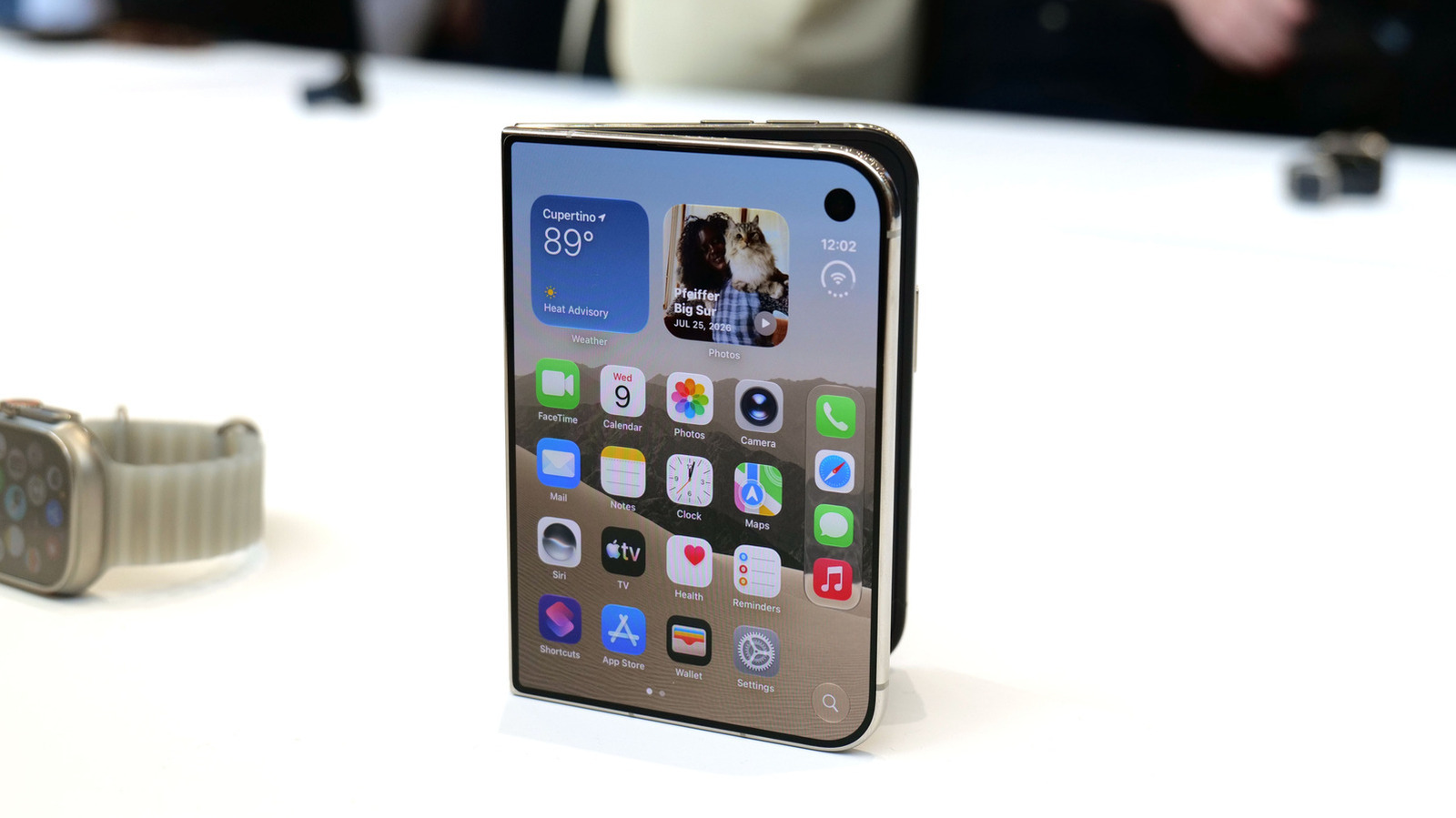
Apple iPhone Duo: A Daring Debut with Notable Compromises
Apple's highly anticipated iPhone Duo, priced at $2,000, has gone on pre-order. While hailed as "Apple's most exciting device in a decade" for its innovative foldable design and immersive display, it comes with significant drawbacks like the absence of FaceID and a premium camera.
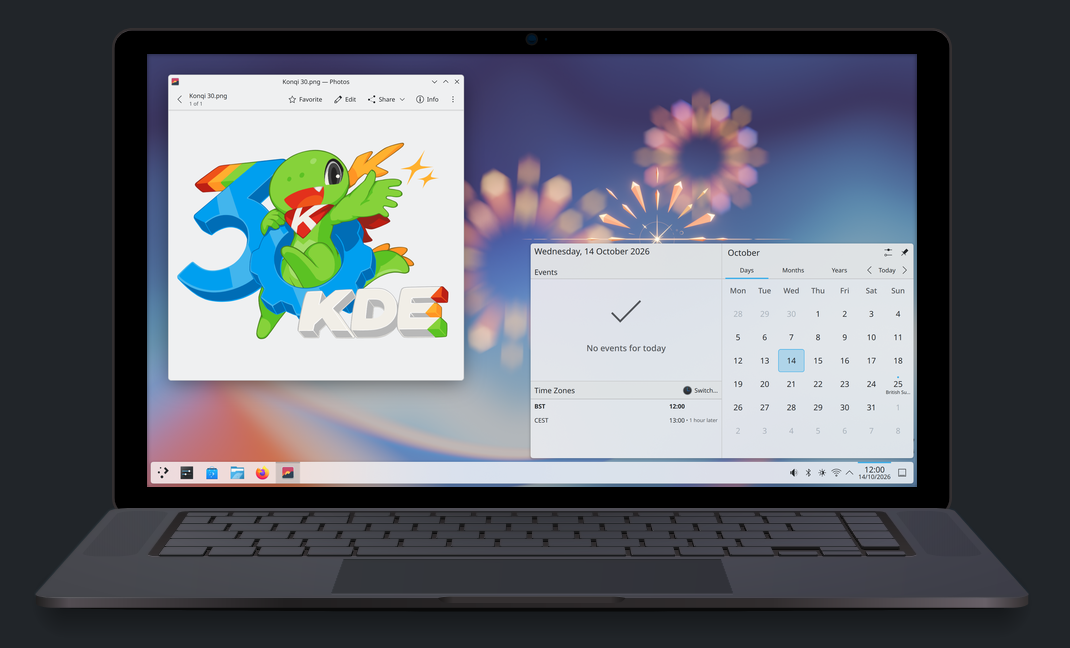
KDE Plasma 6.8: A Future-Focused 30th Anniversary Update
Quick Verdict KDE Plasma 6.8, arriving as the "30th Anniversary Edition," is a pivotal release that decisively pushes the desktop environment into the future. With a definitive farewell to native X11 sessions and a

Kojima Compares Divisive New Film 'Digger' to MGS2's Prescient Vision
Gaming icon Hideo Kojima has praised the divisive 2026 film *Digger*, drawing intriguing parallels to his own prophetic game, *Metal Gear Solid 2*. Both works, he explains, uniquely explore the dangers of misinformation and a fragmented digital reality, anxieties he shares with *Digger*'s director, Alejandro González Iñárritu.