
Escape the Bloat: Choose a Better Media Player for Windows 11
Microsoft is increasingly pushing Windows 11 users towards its newer Media Player application, moving away from the familiar, lightweight Windows Media Player Legacy. While the new app aims for a modern look, it comes
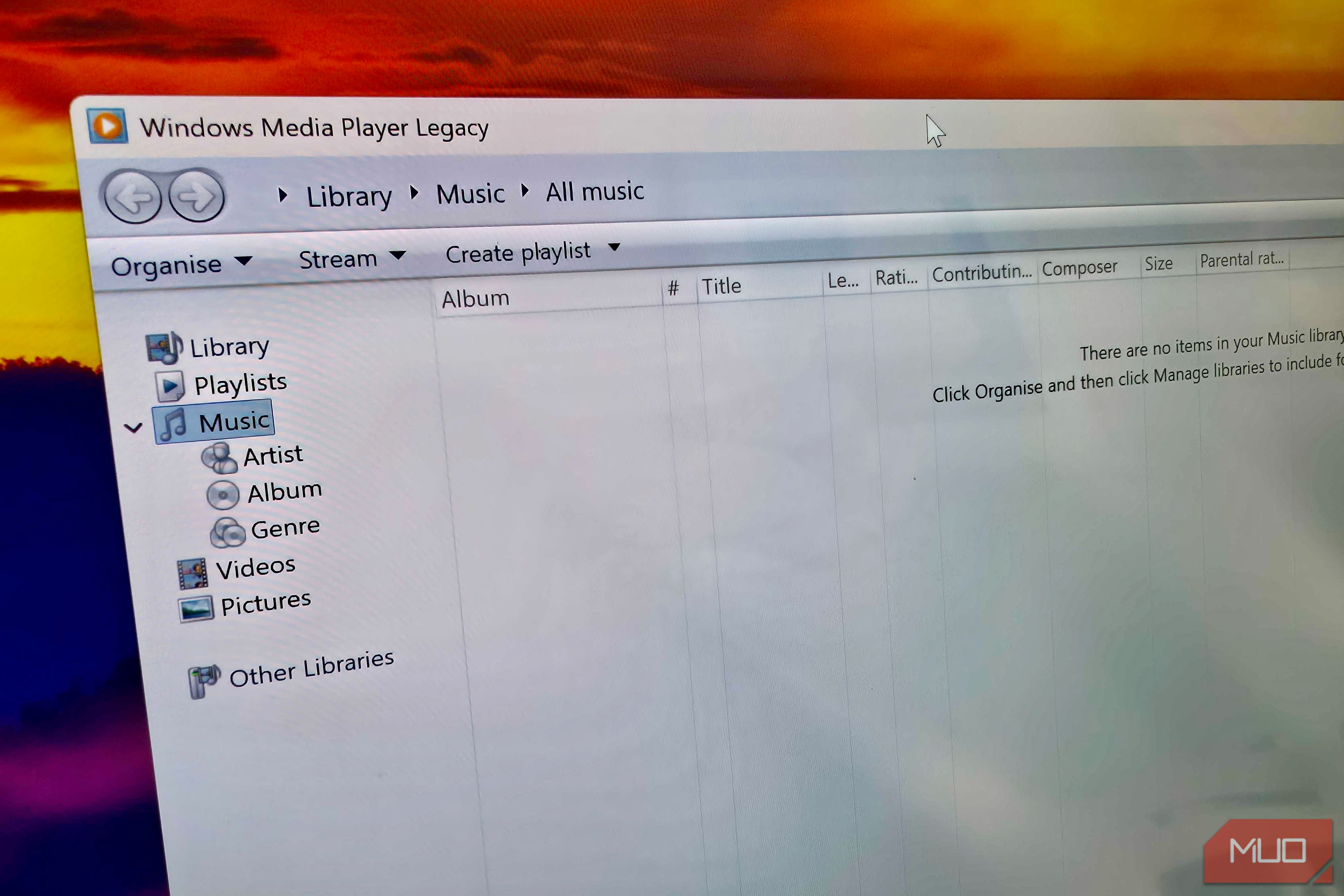
Microsoft is increasingly pushing Windows 11 users towards its newer Media Player application, moving away from the familiar, lightweight Windows Media Player Legacy. While the new app aims for a modern look, it comes with significant drawbacks: it consumes more system resources and, in some experimental builds, even disables essential features like captions in the legacy player. Fortunately, you don't have to settle. This guide will help you understand why switching is beneficial and introduce you to superior, often free, alternatives that offer better performance and features.
Introduction: Ditch the Bloat for a Smoother Experience
For years, Windows Media Player Legacy has served many users as a quick, no-frills tool for local media playback. However, Microsoft's direction with its newer Media Player app in Windows 11 presents a trade-off: a 'modern' interface often comes at the cost of efficiency. For users who value speed and minimal resource consumption, the new player can be a drag.
In some experimental Windows 11 builds, Microsoft has started disabling captions in the legacy player and nudging users towards the modern alternative. This guide empowers you to take control of your media playback experience, ensuring you're not forced into a heavier application that compromises your system's performance or accessibility needs.
Prerequisites
Before you dive into finding your ideal media player, ensure you have the following:
- A PC running Windows 11.
- An active internet connection to download new software.
- Administrator privileges on your Windows 11 system, as most software installations require them.
Understanding Microsoft's Media Player Push and Its Drawbacks
Microsoft's move to encourage adoption of its newer Media Player app isn't without its issues, especially for those who appreciate efficiency and full functionality.
- Resource Consumption: A key concern is the new player's appetite for RAM. While idle, the modern Media Player can consume approximately 377MB of RAM. In stark contrast, Windows Media Player Legacy typically uses about 103.4MB. This significant difference can impact overall system performance, particularly on machines with 8GB of RAM, where every megabyte counts for smooth multitasking.
- Feature Limitations: The new player also introduces an unexpected cost. To play HEVC videos, you'll need to purchase Microsoft's $0.99 HEVC Video Extensions from the app store. Windows Media Player Legacy, on the other hand, handles HEVC videos right out of the box, free of charge.
- Accessibility Concerns: Perhaps most notably, Microsoft has begun testing Windows 11 Insider Experimental Build 29648.1000, which actively prevents the old player from displaying captions, explicitly directing users to the modern Media Player. Disabling a previously functional accessibility feature to force a software switch is a peculiar strategy that can inconvenience many users who rely on captions.
Given these drawbacks, exploring alternative media players makes perfect sense for users seeking better performance, more features, or simply a player that respects their system resources.
Step 1: Identify Your Media Player Needs
Before selecting an alternative, consider what you prioritize in a media player:
- Speed and Minimalism: Do you want a player that launches instantly and stays out of your way?
- Clean Interface with Broad Support: Are you looking for a modern design that handles many formats easily?
- Advanced Control and Customization: Do you prefer extensive settings for fine-tuning playback, audio, and subtitles?
Step 2: Explore Top Media Player Alternatives
Here are three excellent alternatives to consider, each catering to different user preferences:
Option 1: mpv – The Lightweight Powerhouse
If you value speed and simplicity above all else, mpv is an outstanding choice. It's a free, open-source player known for its minimal interface and exceptional performance.
- Why choose it: mpv launches incredibly fast and uses minimal resources. It supports a vast array of media formats and subtitle types. Crucially, it offers GPU-accelerated playback for smooth video, even with high-resolution content. Advanced features like HDR, color management, and detailed subtitle timing controls are available but hidden from ordinary playback, keeping the interface clean and uncluttered.
- How to get it: Visit the official mpv website (mpv.io) to download the latest version.
Option 2: Screenbox – VLC's Engine with a Modern Look
For users who appreciate the robust capabilities of VLC but desire a more contemporary interface tailored for Windows, Screenbox is an excellent option.
- Why choose it: Screenbox leverages VLC's powerful playback engine, ensuring broad format support, but presents it within a much cleaner, more intuitive interface. It includes familiar features like playlists, subtitle support, and playback controls without the often-dated appearance of other desktop programs. If you're seeking a balance between comprehensive features and a sleek design, Screenbox is worth exploring.
- How to get it: Search for "Screenbox media player" online to find its download page. Ensure you download from a reputable source.
Option 3: PotPlayer – The Feature-Rich Contender
If you're a power user who craves extensive control and customization options, PotPlayer could be your ideal media player. It offers a significant upgrade in terms of features compared to Windows Media Player.
- Why choose it: PotPlayer boasts a wide array of controls, supports multiple subtitle formats, includes built-in codecs, and offers hardware acceleration for smooth performance. While its settings menu can initially appear crowded due to the sheer number of options, this flexibility is precisely why many users prefer it over other players like VLC for its granular control over every aspect of media playback.
- How to get it: Search for "PotPlayer" online and download it from its official website or a trusted software repository.
Step 3: Download and Install Your Chosen Player
Once you've decided on an alternative, follow these general steps to install it:
- Visit the Official Website: Navigate to the official download page for mpv, Screenbox, or PotPlayer.
- Download the Installer: Locate and download the installer file (usually an .exe).
- Run the Installer: Double-click the downloaded file and follow the on-screen prompts. Most installers will guide you through the process with default settings, which are usually fine for most users.
Important: Always download software from official developer websites or well-known, trusted software repositories to avoid malware or unwanted bundled software.
Step 4: Set Your New Player as Default (Optional but Recommended)
To ensure your preferred player automatically opens your media files:
- Go to Windows Settings (Windows Key + I).
- Click on Apps, then select Default apps.
- You can either search for the specific file type (e.g., ".mp4") and change its default app, or find your newly installed media player in the list and manage its associated file types.
Troubleshooting Common Issues
While these players are generally stable, you might encounter minor issues.
- Installation Problems: If the installer fails, ensure you have administrator rights. Temporarily disabling your antivirus software (if you trust the source) might also help, but remember to re-enable it immediately after installation.
- Playback Issues: If a video doesn't play correctly, ensure your graphics drivers are up to date. While these players come with extensive codec support, very niche formats might require additional codec packs (though this is rare with the recommended options).
- Subtitle Problems: If subtitles aren't appearing, check your player's settings to ensure subtitle display is enabled. Also, verify that the subtitle file is in a supported format (like .srt) and ideally has the same name as your video file, placed in the same directory.
Tips for Best Practice
- Test Drive: Don't hesitate to download and try out a couple of these players. Their minimal footprint means you can easily compare interfaces and features to find your perfect fit.
- Explore Settings: Once you're comfortable, delve into the advanced settings. Players like PotPlayer offer a wealth of customization that can significantly enhance your viewing experience.
- Stay Updated: Keep your chosen media player updated. Developers frequently release new versions with bug fixes, performance improvements, and support for new media formats.
Next Steps: Enhance Your Media Experience
Now that you have a powerful media player, consider exploring other ways to optimize your media setup:
- Media Management: Look into tools for organizing your local video and music libraries.
- Streaming Services: If you also stream content, ensure your streaming apps are configured for optimal performance.
- Windows Customization: Explore other Windows 11 customization options to fine-tune your entire operating system for efficiency and personal preference.
FAQ
Q: Why is Microsoft pushing a new Media Player?
A: Microsoft often updates its built-in applications to align with newer design philosophies and to integrate new features. In this specific instance, the push appears to be an effort to transition users to a more modern-looking app, even if it comes at the cost of increased resource usage and, in some experimental builds, the removal of features from the legacy player to encourage the switch.
Q: Are these alternative media players safe to use?
A: Yes, the alternative media players recommended—mpv, Screenbox, and PotPlayer—are generally considered safe and reliable. mpv is open-source and widely respected in the tech community. Screenbox and PotPlayer are also popular choices. However, it's always critical to download these applications directly from their official websites or well-known, reputable software download sites to avoid installing unwanted bundled software or malware.
Q: Can I still use the old Windows Media Player Legacy?
A: For most users, Windows Media Player Legacy remains available and functional in current stable versions of Windows 11. However, Microsoft is indeed experimenting with disabling specific features, such as captions, in WMP Legacy within Insider Preview builds. This indicates a potential future where the legacy player's functionality might be deliberately limited to encourage users to switch to the newer Media Player app. For now, you can likely continue using it, but its long-term viability with full features is uncertain.
Related articles

TCG Pocket Responds: A Much-Needed Pace Shift for Pokémon Fans
Pokémon TCG Pocket is rolling out a major update for its second anniversary, primarily addressing player concerns about overwhelming content releases by shifting to a six-week set schedule. This aims to curb player decline and improve overall engagement by giving trainers more time to collect and strategize. The update also adds new collection methods, improved deck-building features, and enhanced trading functionality.

Ditch Merge & Center: The Better Way to Align Text in Excel
Learn to use Excel's "Center Across Selection" to align text across cells without merging, avoiding common data manipulation issues. This guide provides steps to utilize this newly accessible feature and add it to your Quick Access Toolbar.
Ubisoft Proposes German Studio Workforce Reduction Amidst
Ubisoft is planning a voluntary departure program for about 100 employees across its Düsseldorf, Berlin, and Mainz studios in Germany. This move is part of a larger, ongoing cost-reduction and restructuring effort by the publisher, aiming to better position its studios for future projects.

Stop Android Auto Battery Drain: Essential Features to Disable and
Android Auto offers unparalleled convenience, bringing your phone's most useful features directly to your car's display. From navigation and calls to messages and music, it keeps you connected without distracting you

Turn Your Android Phone into a Powerful Desktop Replacement
Learn how to transform your Android phone into a full-fledged desktop computer using external displays and accessories, providing a cost-effective and integrated alternative to new Googlebooks.

howto: Four Ways the Fitbit Edge Is Better Than the Charge 6, and Two
Learn the key differences between the Fitbit Edge and Charge 6, including four advantages of the Edge and two areas where it falls short, to help you choose the best fitness tracker for your needs.