
Boost Your Windows PC: 5 Defaults to Disable for Better Speed
Learn to disable or adjust 5 common Windows default settings in simple steps to significantly improve your PC's speed and responsiveness.
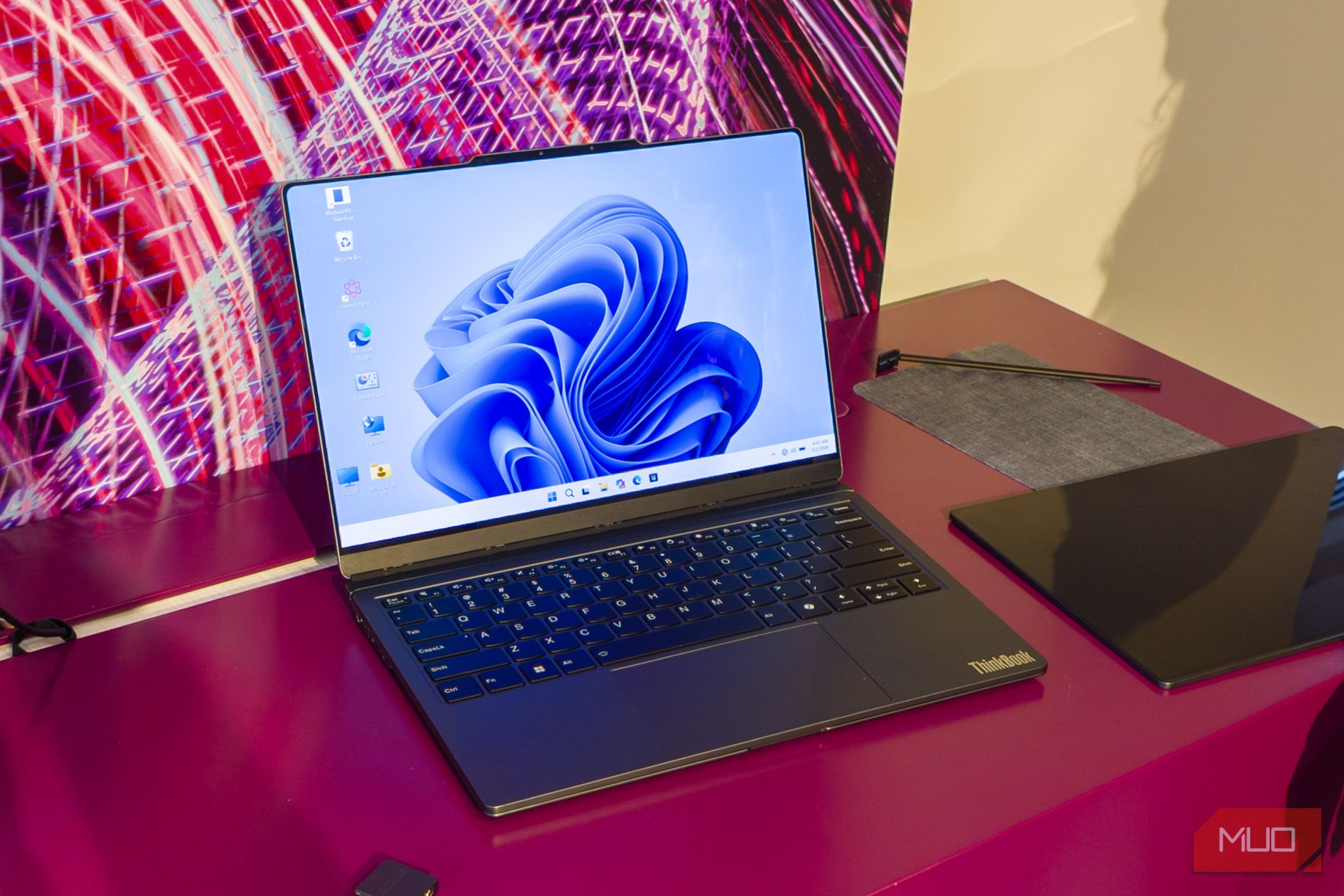
Windows strives to offer a smooth, out-of-the-box experience, but many of its default settings can quietly consume your system resources, leading to a slower and less responsive PC. These background processes, visual effects, and power configurations can especially impact older or less powerful machines.
This guide will walk you through five common Windows defaults that might be costing you speed and provide clear, actionable steps to optimize them. By adjusting these settings, you can reclaim your PC's performance and enjoy a snappier computing experience.
What You'll Accomplish
By following this guide, you will learn to:
- Reduce unnecessary background activity from Windows Search.
- Minimize the resource drain from visual effects and animations.
- Configure your power settings for optimal performance.
- Control which applications launch with your PC and run in the background.
- Disable non-essential system services that consume valuable resources.
Prerequisites
- A Windows 10 or Windows 11 PC.
- Administrator privileges to change system settings.
- Basic familiarity with navigating Windows settings and menus.
1. Tame Windows Search Indexing
Windows Search constantly indexes files on your drive—including photos, videos, documents, and even system files. This continuous scanning happens in the background, spiking CPU and disk usage, which can noticeably slow down your PC, particularly older or budget models. Furthermore, the default Windows Search isn't always the fastest or most reliable.
Steps to Optimize Search Indexing:
- Disable the Windows Search Service: This is the most effective way to stop continuous indexing.
- Press
Win + Rto open the Run dialog, typeservices.msc, and press Enter. - In the Services window, scroll down and locate "Windows Search."
- Right-click on "Windows Search" and select "Properties."
- In the "General" tab, change the "Startup type" to "Disabled."
- If the service is currently running, click the "Stop" button.
- Click "Apply" then "OK."
- Press
Tip:
Consider using a third-party search tool like "Everything." Unlike Windows Search, it typically indexes only file names and locations, not file contents, making it significantly faster and lighter on resources.
2. Optimize Visual Effects and Animations
Windows 11, in particular, heavily relies on animations and visual effects—such as windows fading in and out, taskbar effects, smooth scrolling, and shadows under elements. While these add to the aesthetic, they force your PC to work harder, which can make a less powerful machine feel even slower. On underpowered systems, these effects can actually worsen the user experience.
Steps to Adjust Visual Effects:
- Search for "adjust the appearance and performance of Windows" in the Start menu and open the relevant setting.
- In the "Performance Options" window, under the "Visual Effects" tab, select the radio button for "Adjust for best performance." This will disable most animations and effects across the operating system.
- Click "Apply" then "OK."
Tip:
If the "bare" look is too much, you can selectively re-enable a few key options for a better balance. After selecting "Adjust for best performance," switch to "Custom" and check boxes like "Smooth edges of screen fonts," "Animate windows when maximizing and minimizing," and "Smooth scroll list boxes." Then click "Apply."
3. Switch from Balanced Power Mode
Windows defaults to a "Balanced" power mode, which aims to strike a compromise between power consumption and performance. While suitable for basic tasks, this setting prevents your PC from operating at its peak speed, especially during resource-intensive activities like gaming, video editing, or complex data processing. You're leaving performance on the table.
Steps to Change Power Mode:
- Open Settings (press
Win + I). - Navigate to System > Power & battery.
- Under the "Power mode" section, click the drop-down menu and select "Best performance."
Tip:
For laptops, you can achieve the best of both worlds by setting your power mode to "Best performance" only when the device is plugged in. The source also mentions a hidden "Ultimate Performance" plan, which forces your processor to run at full capacity; however, it's generally not recommended for daily use due to higher power draw and potential wear.
4. Manage Startup and Background Apps
Each time you install an application, there's a high chance it will add itself to your PC's startup list. These apps launch automatically when Windows boots, consuming RAM and CPU even if you don't immediately need them. Furthermore, many applications continue to run in the background after you've closed them, silently draining resources.
Steps to Manage Startup Apps:
- Open Task Manager by pressing
Ctrl + Shift + Esc. - Go to the "Startup apps" tab.
- Review the list of applications. For any app you don't need to launch immediately with Windows, select it and click "Disable" at the bottom right. Prioritize apps with a high "Startup impact."
Steps to Manage Background Apps:
- Close from System Tray: Many background apps can be closed by right-clicking their icon in the system tray (bottom-right corner of the taskbar) and selecting "Exit" or "Close."
- End Task via Task Manager: If an app is still running, go to the "Processes" tab in Task Manager, find the app, right-click it, and select "End task."
- Revoke Background Permissions (for Microsoft Store apps):
- Go to Settings > Apps > Apps & features.
- Find the specific app, click the three horizontal dots next to its name, and select "Advanced options."
- Under "Background apps permissions," choose "Never" from the drop-down menu.
5. Disable Unnecessary System Services
Just like applications, Windows runs numerous system services from the moment it boots. A significant number of these services may not be essential for your typical workflow and can unnecessarily consume memory and CPU. Examples include "Delivery Optimization," "SysMain" (Superfetch), "Windows Error Reporting," and "Connected User Experiences and Telemetry."
Steps to Disable Unnecessary Services:
- Search for "Services" in the Start menu and open the Services desktop app.
- Carefully scroll through the extensive list of services.
- For services you've identified as non-essential (e.g., "Windows Search" if you've disabled it already, "Delivery Optimization," "SysMain," "Error Reporting," or "Telemetry" services):
- Right-click on the service and select "Properties."
- In the "General" tab, change the "Startup type" to "Disabled."
- If the service is currently running, click the "Stop" button.
- Click "Apply" then "OK."
Warning:
Disabling critical system services can cause system instability or prevent Windows from functioning correctly. Only disable services you are confident are unnecessary or after researching their specific function. It's advisable to create a system restore point before making extensive changes to services.
Troubleshooting Tips
- Restart Your PC: After making these changes, a full restart often helps Windows apply the new settings and re-evaluate resource allocation.
- Monitor Performance: Use Task Manager (
Ctrl + Shift + Esc) to observe CPU, Memory, Disk, and Network usage before and after changes to verify improvements. - Revert Changes: If you experience unexpected issues or performance degradation, try reverting the last change you made. If you disabled a service, try setting its startup type back to "Manual" or "Automatic."
- System Restore Point: Always consider creating a system restore point before making significant system changes, especially when dealing with services. This allows you to easily revert to a previous working state.
Next Steps
Regularly reviewing these settings can help maintain your PC's optimal performance. Additionally, consider:
- Running Disk Cleanup periodically.
- Keeping your operating system and drivers updated.
- Uninstalling unused programs.
FAQ
Q: Is it safe to disable all visual effects?
A: Generally, yes, disabling most visual effects is safe and won't harm your system. However, your Windows interface might appear less modern or fluid. You can selectively re-enable a few preferred effects if the plain look is too stark.
Q: How do I know which services are safe to disable?
A: It's crucial to exercise caution. Focus on well-known non-essential services like "Delivery Optimization," "SysMain" (Superfetch), "Fax," "Print Spooler" (if you don't print), and "Connected User Experiences and Telemetry." Always research a service before disabling it, and avoid touching anything critical without clear understanding, as this can lead to system instability.
Q: Will these optimization changes be permanent?
A: Most changes to startup apps, services, and visual effects will remain until you manually revert them. Power mode settings are also persistent. Occasionally, major Windows updates might reset some settings, so it's a good practice to review them after significant system updates.
Related articles
Android 17 QPR2 Beta 7.1: The Performance Relief You've Been Waiting
Android 17 QPR2 Beta 7.1: Finally Fixing the QPR1 Performance Woes Verdict: Android 17 QPR2 Beta 7.1 is a crucial and highly anticipated software update for Google Pixel users, specifically targeting and resolving the

Ditch Merge & Center: The Better Way to Align Text in Excel
Learn to use Excel's "Center Across Selection" to align text across cells without merging, avoiding common data manipulation issues. This guide provides steps to utilize this newly accessible feature and add it to your Quick Access Toolbar.

Ars Technica's Rocket Report: Your Essential Space Industry Briefing
Quick Verdict Ars Technica's Rocket Report, presented by veteran space reporter Stephen Clark, offers an invaluable and meticulously organized weekly (or similar frequency, implied by "Edition 9.15") digest of the most

Ubisoft Proposes German Studio Workforce Reduction Amidst
Ubisoft is planning a voluntary departure program for about 100 employees across its Düsseldorf, Berlin, and Mainz studios in Germany. This move is part of a larger, ongoing cost-reduction and restructuring effort by the publisher, aiming to better position its studios for future projects.

Stop Android Auto Battery Drain: Essential Features to Disable and
Android Auto offers unparalleled convenience, bringing your phone's most useful features directly to your car's display. From navigation and calls to messages and music, it keeps you connected without distracting you

Windows October Update: A Must-Have Security Overhaul
Microsoft's October 2026 Windows update delivers a critical security overhaul, patching over 1,400 vulnerabilities including two zero-days, one already exploited. It's essential for all users, especially with several Windows 11 versions reaching end of support.