
Android Tablet as Second Monitor: A Portable Productivity Game-Changer
Quick Verdict Turning your Android tablet into a secondary monitor for your laptop is a surprisingly effective, free, and portable solution that can dramatically enhance productivity for mobile workers. While it falls
Quick Verdict
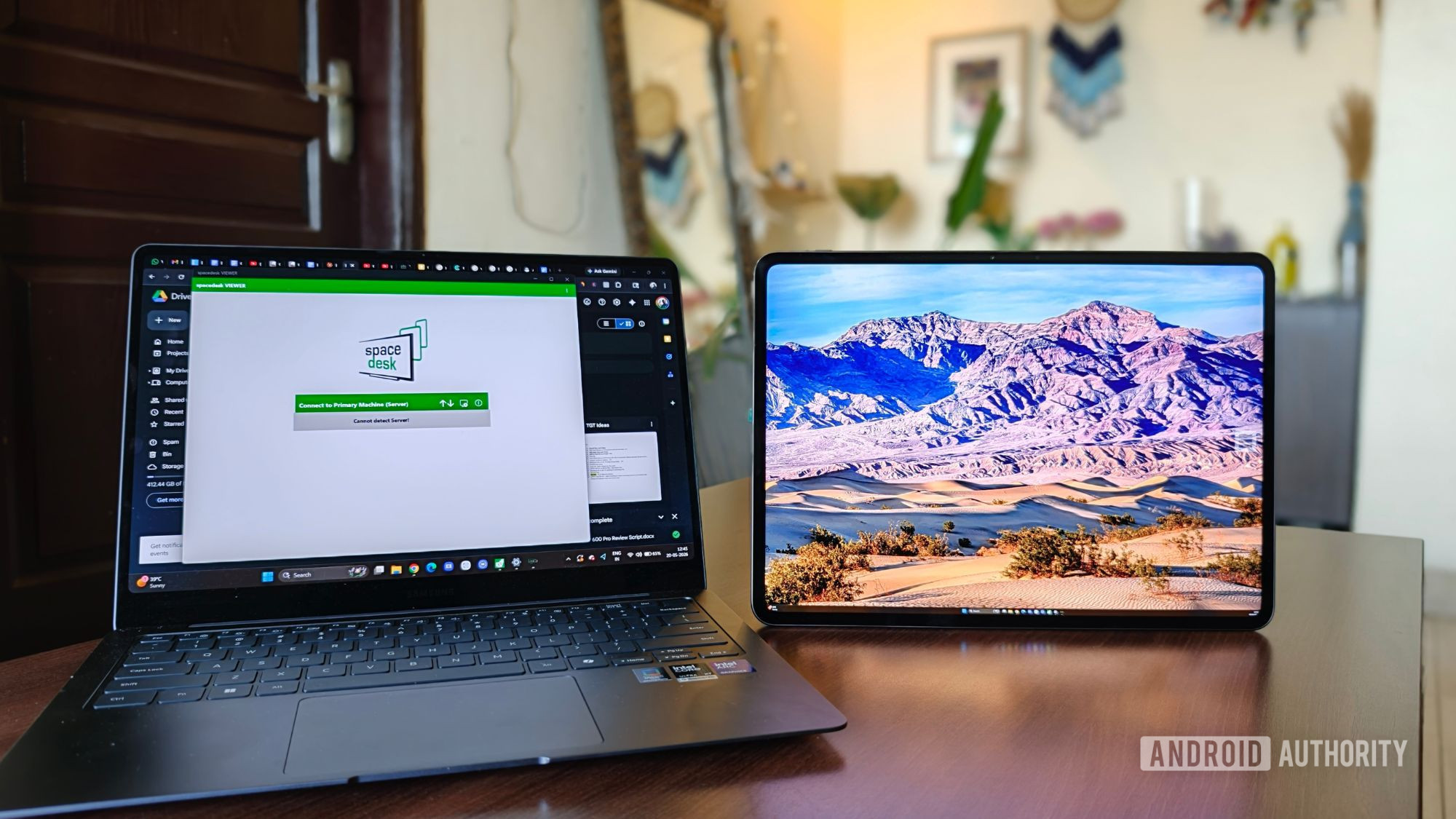
Turning your Android tablet into a secondary monitor for your laptop is a surprisingly effective, free, and portable solution that can dramatically enhance productivity for mobile workers. While it falls short for media consumption due to wireless display limitations and Wi-Fi dependency, it's an absolute game-changer for anyone struggling with a single screen on the go. If your workflow is tab-heavy and demands more screen real estate, this setup is a must-try.
The Quest for Portable Dual Screens
For many, once you experience the seamless workflow of a dual-monitor setup, returning to a single screen feels incredibly restrictive. The convenience of having multiple applications and documents visible simultaneously is difficult to give up. However, the reality of remote work often means constant movement, making a traditional dual-monitor desk setup impractical for travel or working from diverse locations. The challenge has always been how to replicate that efficient, multi-screen experience in a portable format.
The ingenious workaround explored here involves leveraging existing hardware: an Android tablet alongside a Windows laptop. Far from being a janky compromise, this setup transforms devices that might otherwise sit idle into a powerful, portable workstation, maintaining workflow continuity no matter where you are.
The "Magic" Behind It: spacedesk Explained
What initially sounds like a complex technical endeavor is, in reality, remarkably straightforward thanks to a free application called spacedesk. The setup process is refreshingly simple and avoids common frustrations like account creation, subscriptions, or convoluted settings.
Here’s how it works:
- Laptop Driver: Install the lightweight
spacedesk Driveron your Windows laptop or PC. This driver creates a virtual display over your Wi-Fi network. - Tablet App: Download the free
spacedesk viewerapp from the Play Store onto your Android tablet. - Connect: Open the
spacedesk viewerapp on your tablet. It automatically scans for compatible devices on the same Wi-Fi network, displaying your PC's name and IP address. A simple tap connects the two devices. - Configure: Head into Windows Display Settings to switch the display mode to "Extend." You can then physically position your tablet and digitally drag the virtual monitor to match its layout.
This entire process takes just a few minutes, resulting in a wireless display connection that feels far smoother than one might expect from a free solution. It’s an elegant solution that genuinely impressed with its lack of friction.
User Experience: Redefining Portable Productivity
This portable dual-screen setup shines brightest in scenarios where mobility is key: traveling, working from cafés, transitioning between meetings, or catching up on tasks at an airport. It’s designed for individuals who are rarely in one place for too long.
The hardware integration plays a significant role in the positive experience. Using a compact laptop like the Samsung Galaxy Book 6 Pro with a tablet like the OnePlus Pad 4, which boasts a surprisingly similar screen size, ensures that shifting focus between displays feels natural and cohesive, not awkward or disconnected.
For those with a tab-heavy workflow – juggling numerous Chrome tabs, research links, documents, PDFs, communication apps (WhatsApp, Slack, Microsoft Teams), and calendars – this setup is revolutionary. Previously, this digital clutter resided on a single screen, leading to constant window switching, lost tabs, and significant mental exhaustion over a long workday. The tablet-as-second-monitor creates a clear separation:
- Laptop: Dedicated to active work, such as writing, communication, meetings, and urgent tasks.
- Tablet: Becomes a dedicated research board, holding all articles, reference tabs, notes, and comparisons.
This intentional partitioning not only organizes digital space but also creates a tangible sense of order that profoundly impacts cognitive load. By giving everything its own place, the setup fosters a calmer, less overwhelmed mental state during chaotic workdays. It genuinely feels like a workspace that intuitively understands and supports a busy brain.
Where It Shines: Pros
- Seamless Productivity: Excellently handles multitasking for work-related tasks, including extensive browser use, document management, and communication apps.
- Effortless Setup: The
spacedeskapp provides a quick, free, and intuitive setup process without requiring accounts or subscriptions. - Highly Portable: Transforms an otherwise underutilized Android tablet into a functional second screen, enabling a dual-monitor workflow anywhere you can take your laptop and tablet.
- Cost-Effective: Utilizes existing devices and a free application, making it an incredibly economical solution for expanding screen real estate.
- Gives Purpose to Dormant Devices: Revitalizes a tablet that might otherwise collect dust, integrating it meaningfully into a daily workflow.
Where It Falters: Cons
While a powerful productivity tool, the tablet-as-second-monitor setup isn't without its limitations, particularly when entertainment enters the equation.
- Media Streaming Issues: Attempts to use the tablet for video streaming (Netflix, YouTube) often reveal noticeable lag, compression artifacts, and stuttering. It's not ideal for consuming dynamic media.
- Wi-Fi Dependency: The entire experience is tethered to the stability and strength of the Wi-Fi connection. Public Wi-Fi networks in airports, hotels, or cafés, with their unpredictable nature, can lead to dropped frames, input delays, and softer visuals, breaking the illusion of a seamless display.
- Screen Size Limitations: Compared to a dedicated desktop dual-monitor setup, the smaller screens of a laptop and tablet offer less breathing room and multitasking space, potentially requiring more compromises in scaling. It's a liberating experience if you're coming from a single-laptop setup, but those accustomed to large external monitors will notice the difference.
Recommendation
If you are a mobile professional, a student, or anyone whose work demands more screen space than a single laptop can provide, this setup is highly recommended. It’s a fantastic, free solution for enhancing productivity on the go, making chaotic workdays feel significantly more organized and manageable. The trade-offs in screen size and media performance are minor when weighed against the immense boost in portable efficiency.
However, if your primary goal for a second portable screen is high-fidelity video streaming or graphics-intensive tasks, this wireless display solution may not meet your expectations. It excels as a tool for "doing" and "looking" in a structured work environment, not for immersive entertainment.
Ultimately, this experiment demonstrates the power of creatively repurposing existing tech. For the cost of a free app, you can unlock a level of portable productivity that was once exclusive to static desk setups, breathing new life into a forgotten tablet.
FAQ
Q: Is this setup suitable for gaming or graphic design? A: No, the source content suggests that the wireless display connection introduces lag, compression artifacts, and stuttering, especially with moving visuals. This makes it unsuitable for demanding applications like gaming or graphic design where low latency and high fidelity are critical.
Q: Do I need a specific brand of laptop or tablet for this to work?
A: According to the source, the spacedesk Driver is for Windows laptops/PCs, and the spacedesk viewer app is for Android tablets (installed from the Play Store). Specific brands like Samsung (laptop) and OnePlus (tablet) were used, but the solution is described as generic for Windows and Android, implying compatibility across various devices within those ecosystems.
Q: How reliable is this setup on public Wi-Fi? A: The reliability on public Wi-Fi is a significant caveat. The experience "lives and dies by the strength of your connection." Public networks in places like cafés, hotels, or airports can be unpredictable, leading to noticeable issues like dropped frames, delayed input, and softer visuals, making the setup less stable than on a robust home network.
Related articles
Android 17 QPR2 Beta 7.1: The Performance Relief You've Been Waiting
Android 17 QPR2 Beta 7.1: Finally Fixing the QPR1 Performance Woes Verdict: Android 17 QPR2 Beta 7.1 is a crucial and highly anticipated software update for Google Pixel users, specifically targeting and resolving the

DJI Solo Video Setups: Smart Choices for Lone Creators
This review delves into DJI's recommended solo video setups, highlighting the Osmo Pocket 3 Creator Combo as a top pick for its integrated camera, gimbal, and mic. It also covers stabilizers like the Osmo Mobile 8 and RS 4, and the DJI Mic Mini series for enhanced audio, providing honest pros, cons, and clear buying advice.
TCG Pocket Responds: A Much-Needed Pace Shift for Pokémon Fans
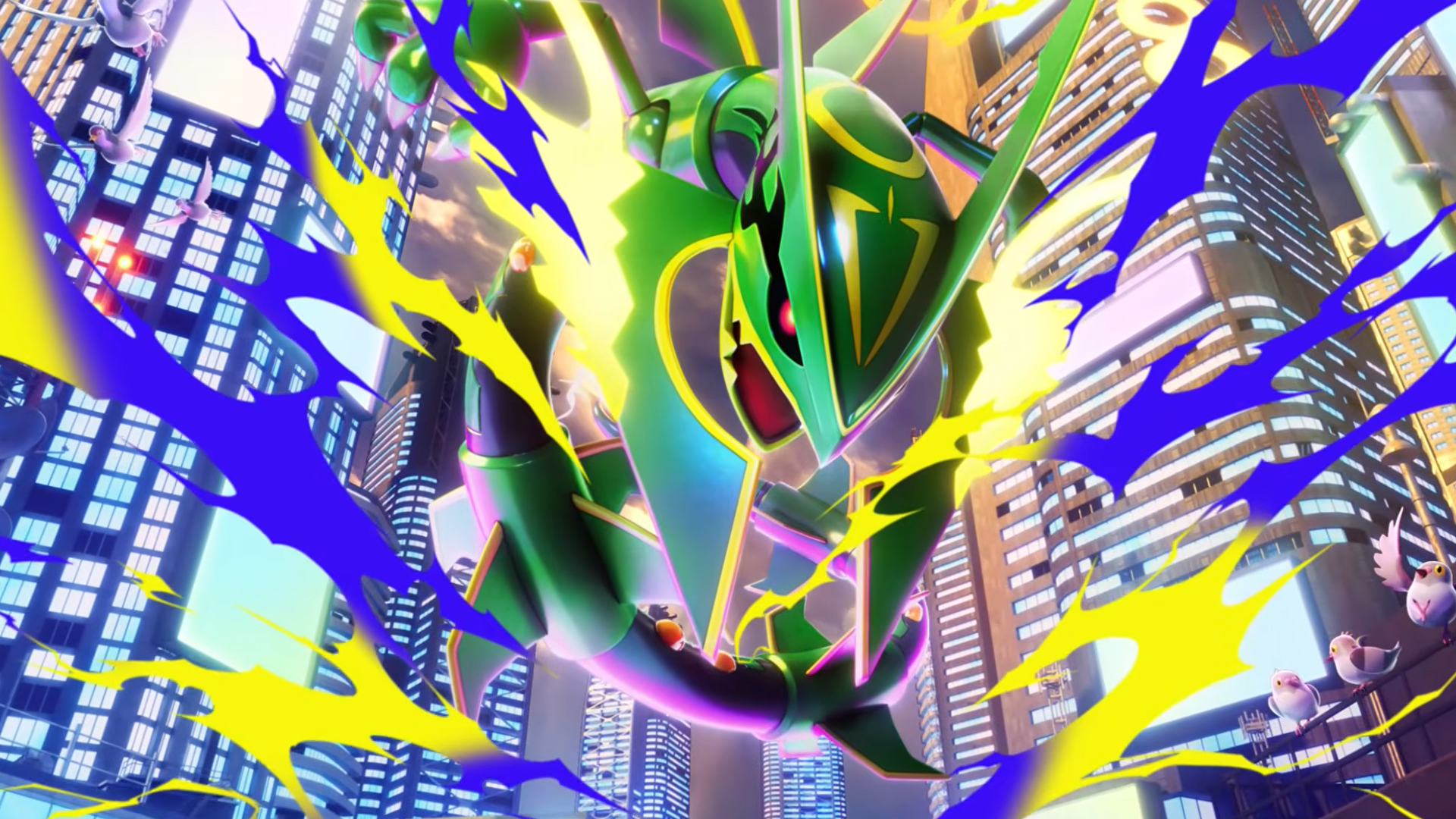
Pokémon TCG Pocket is rolling out a major update for its second anniversary, primarily addressing player concerns about overwhelming content releases by shifting to a six-week set schedule. This aims to curb player decline and improve overall engagement by giving trainers more time to collect and strategize. The update also adds new collection methods, improved deck-building features, and enhanced trading functionality.

Ars Technica's Rocket Report: Your Essential Space Industry Briefing
Quick Verdict Ars Technica's Rocket Report, presented by veteran space reporter Stephen Clark, offers an invaluable and meticulously organized weekly (or similar frequency, implied by "Edition 9.15") digest of the most
Apple iPhone Duo: A Daring Debut with Notable Compromises
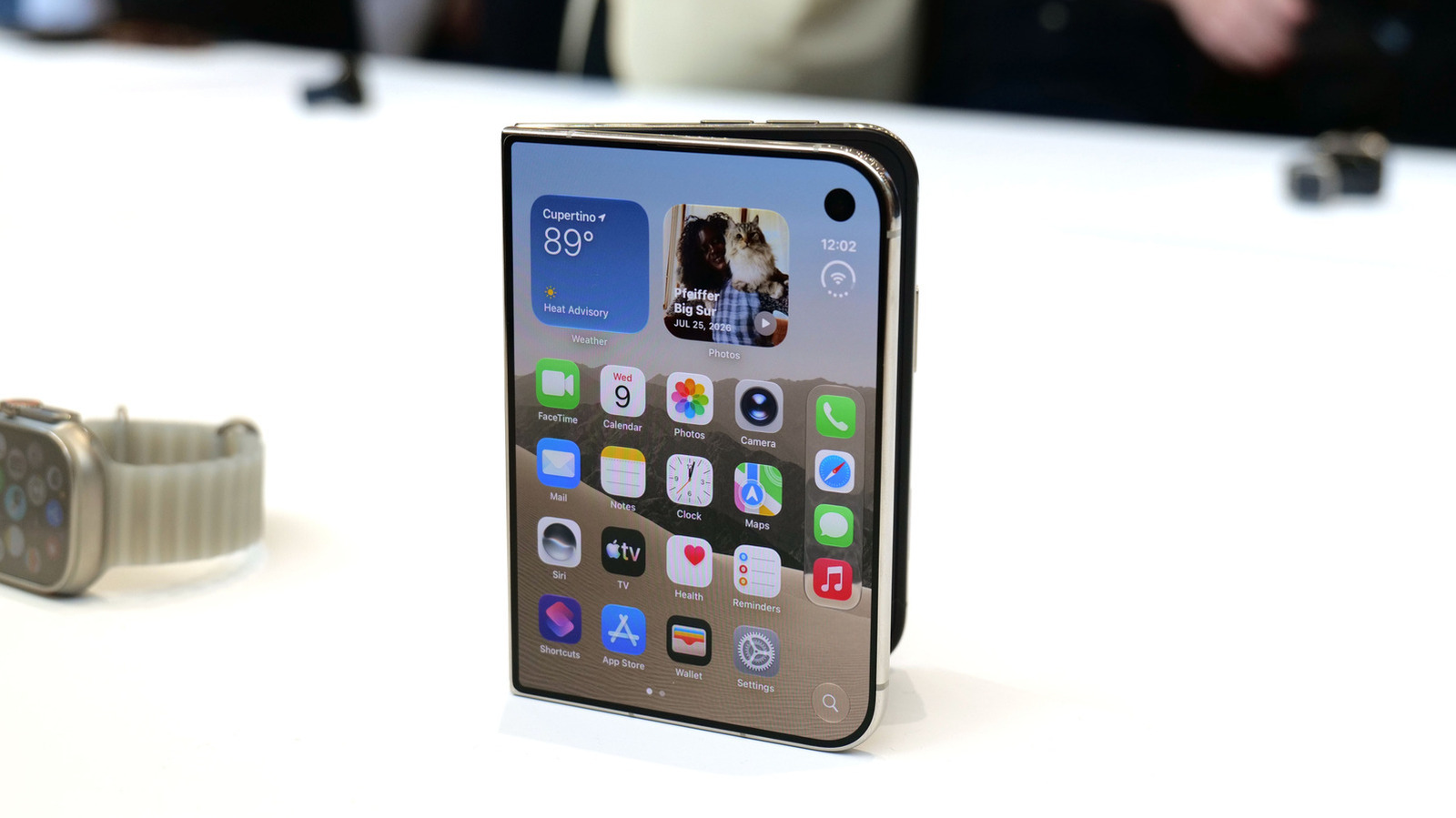
Apple's highly anticipated iPhone Duo, priced at $2,000, has gone on pre-order. While hailed as "Apple's most exciting device in a decade" for its innovative foldable design and immersive display, it comes with significant drawbacks like the absence of FaceID and a premium camera.

Tesla Unveils Thruster-Equipped Roadster, 2028 Production Targeted
Tesla has unveiled its second-generation Roadster, featuring cold-gas thrusters co-developed with SpaceX, enabling it to jump and flip. The electric sports car demonstrated 0-60mph in an astonishing 0.81 seconds, with production targeted for 2028. This highly anticipated reveal also serves as a key recruitment tool for Tesla's ambitious AI and robotics initiatives.