
Android Auto Hidden Settings: Unlock Seriously Useful Features
My 4 favorite Android Auto settings are seriously useful - but hidden by default Quick Verdict: Android Auto's hidden developer settings offer significant and tangible improvements to your in-car infotainment

My 4 favorite Android Auto settings are seriously useful - but hidden by default
Quick Verdict: Android Auto's hidden developer settings offer significant and tangible improvements to your in-car infotainment experience, transforming it from a standard convenience into a highly customizable and efficient tool. While initially daunting, activating these settings is straightforward and unlocks features from display consistency to battery optimization and extended app functionality. For any Android Auto user, especially those looking for a more personalized and robust system, diving into these hidden options is a highly recommended and rewarding endeavor.
Android Auto has become an indispensable companion for countless drivers, streamlining navigation, music, and communications while on the road. For most, it's a plug-and-play solution that simply works. However, like its smartphone counterpart, Android Auto harbors a 'developer mode' – a secret backdoor to advanced settings not typically exposed to the average user. This isn't just for app creators; it's a goldmine for anyone willing to invest a minute to tinker, promising to completely reshape the look and functionality of your car's infotainment system for the better.
Unlike traditional app-based settings, accessing Android Auto's developer mode requires a slightly different approach. The Android Auto application itself doesn't sit among your regular app icons, so you'll need to navigate through your device's primary settings menu.
How to Access Android Auto Developer Mode:
- Open your phone's Settings.
- Use the search function within Settings to find "Android Auto".
- Tap on it, then select "Additional settings in the app."
- Scroll down until you locate the "Version" entry.
- Tap the "Version" entry 10 times consecutively.
- A prompt will appear; tap OK to confirm.
Once enabled, you'll gain access to a new menu that houses these powerful, hidden adjustments. Here are four of the most impactful changes you can make.
The Best Android Auto Developer Settings Explained
1. Force Day/Night Mode: Consistency on Your Terms
One of the most common frustrations with Android Auto's default behavior is its automatic switching between day and night modes. This transition, triggered by factors like time of day, ambient light sensors, or your car's headlights, often leads to jarring or inconvenient changes. Imagine your map suddenly going dark on an overcast afternoon, or flickering between modes as you pass through a short tunnel – it's distracting and less than ideal.
The 'Force Day/Night Mode' developer setting offers a welcome solution. Instead of automatic transitions, you can permanently set Android Auto to 'Day' mode, 'Night' mode, or opt for 'Phone controlled.' The 'Phone controlled' option is particularly useful, allowing Android Auto to synchronize with your phone's system-wide dark mode settings, such as scheduled dark themes or always-on dark mode. This level of control ensures visual consistency, eliminating unwanted mode shifts and allowing you to choose the interface brightness that best suits your eyes and driving conditions. While you can adjust Maps' day/night behavior in standard settings, this developer option applies the chosen mode to the entire Android Auto interface, providing a unified experience.
2. Video Resolution: Sharpen Your Display
Many modern cars boast large, high-resolution displays that Android Auto should ideally leverage to their full potential. However, by default, Android Auto often negotiates a resolution with your car that prioritizes bandwidth saving, meaning it might not be running at the highest possible sharpness. This can result in slightly fuzzy icons, less detailed background art, or maps that lack the crispness they could have.
Under developer settings, you can manually override this negotiation and choose a higher video resolution. The available options will vary depending on your specific phone and car hardware. It's an experimental process – you can tap through the options to see the immediate visual impact. For users with larger, more capable infotainment screens, this can lead to an immediate and noticeable upgrade in clarity and detail across the entire interface. Be mindful, however, that selecting an excessively high resolution, particularly in older vehicles, might lead to a degraded display or even a black screen; fortunately, switching back to a previous setting is simple and quick, making it a safe feature to experiment with.
3. Wireless Android Auto: Save Your Battery on the Go
The convenience of wireless Android Auto connectivity is undeniable. For vehicles that support it, Android Auto automatically connects to your phone as soon as you start the car. While fantastic for everyday use, this continuous wireless connection can be a significant drain on your phone's battery, even if you're not actively using Android Auto for navigation or media playback.
If you're an infrequent Android Auto user – perhaps only needing it for extended road trips or specific errands – the 'Wireless Android Auto' developer setting offers a valuable toggle. By unchecking this box, you disable the automatic wireless connection. Instead, Android Auto will only activate and connect when you physically plug your phone into the car via a USB cable. This simple change allows you to conserve your phone's battery life throughout your daily commute or shorter trips, ensuring you have ample power when you actually need Android Auto for a longer journey, making it a thoughtful adjustment for battery-conscious drivers.
4. Unknown Sources: Unlock a World of Unofficial Apps
For many users, Android Auto's app ecosystem feels somewhat restricted, limited to a curated selection of mainstream navigation, music, and messaging applications. The 'Unknown sources' feature in developer mode is Android Auto's answer to sideloading, opening the door to applications not officially sanctioned or available through Google's usual channels. This is where the platform truly transforms for power users.
Enabling 'Unknown sources' allows you to install a diverse range of niche apps. This includes alternative media players capable of handling locally stored content, web browsers like AA Browser for in-car internet access, or even apps that mirror your entire phone screen onto the infotainment display. Furthermore, you can find tools for monitoring your car's diagnostics, providing real-time OBD-II data and engine metrics, or enhanced smart home control apps to manage your devices from the driver's seat. Examples like CarTube and CarStream have allowed users to watch YouTube videos (even before official support arrived), while Fermata Auto caters to local video playback, and Widgets for Auto enables custom Android phone widgets such as weather, calendar views, and smart home toggles directly on your car screen. While the implied risk of using apps from unknown sources always exists, for those who understand the implications and seek to expand Android Auto's capabilities, this setting is a gateway to unparalleled customization.
Overall User Experience and Recommendation
Activating these hidden developer settings transforms Android Auto from a functional system into a highly personalized and efficient command center. The ability to fine-tune display modes, sharpen visuals, manage battery consumption, and vastly expand app functionality significantly enhances the overall driving experience. These aren't just minor tweaks; they represent fundamental improvements that cater to individual preferences and power user demands.
Buying Recommendation: These 'settings' aren't a product to buy, but rather a set of enhancements for your existing Android Auto setup. I strongly recommend exploring developer mode if you find yourself occasionally frustrated by Android Auto's default behaviors, desire better visual fidelity, need to conserve phone battery, or wish to unlock a broader range of applications. The process is simple, reversible, and the benefits for a more tailored and powerful in-car experience are considerable. It's a free upgrade that every Android Auto enthusiast should consider.
FAQ
Q: Is it safe to enable Android Auto's developer mode? A: Yes, accessing developer mode itself is safe and built into the system. The potential 'risks' come more from certain individual settings, such as installing 'Unknown sources' apps, which could introduce instability or security concerns if the apps are not from trusted developers. However, the other settings like day/night mode or resolution are generally harmless to experiment with and easily reversible.
Q: Will enabling these settings void my car's warranty or damage my phone/car? A: No, enabling developer mode within Android Auto is a software-level change on your phone and does not interact with or modify your car's core systems or hardware in a way that would typically void a warranty. Similarly, it's designed to be reversible and generally won't cause permanent damage to your phone or car infotainment system. If a setting causes an issue (like a black screen with high resolution), you can simply revert it.
Q: Do I need to keep developer mode enabled permanently to use these settings? A: Yes, once you've changed a setting in developer mode, it will typically remain active. However, to access the developer settings menu again to make further adjustments, you will need to re-enable developer mode by tapping the 'Version' number 10 times. The settings themselves persist without developer mode being actively 'on' in the menu.
Related articles
Android 17 QPR2 Beta 7.1: The Performance Relief You've Been Waiting
Android 17 QPR2 Beta 7.1: Finally Fixing the QPR1 Performance Woes Verdict: Android 17 QPR2 Beta 7.1 is a crucial and highly anticipated software update for Google Pixel users, specifically targeting and resolving the

DJI Solo Video Setups: Smart Choices for Lone Creators
This review delves into DJI's recommended solo video setups, highlighting the Osmo Pocket 3 Creator Combo as a top pick for its integrated camera, gimbal, and mic. It also covers stabilizers like the Osmo Mobile 8 and RS 4, and the DJI Mic Mini series for enhanced audio, providing honest pros, cons, and clear buying advice.

Ars Technica's Rocket Report: Your Essential Space Industry Briefing
Quick Verdict Ars Technica's Rocket Report, presented by veteran space reporter Stephen Clark, offers an invaluable and meticulously organized weekly (or similar frequency, implied by "Edition 9.15") digest of the most
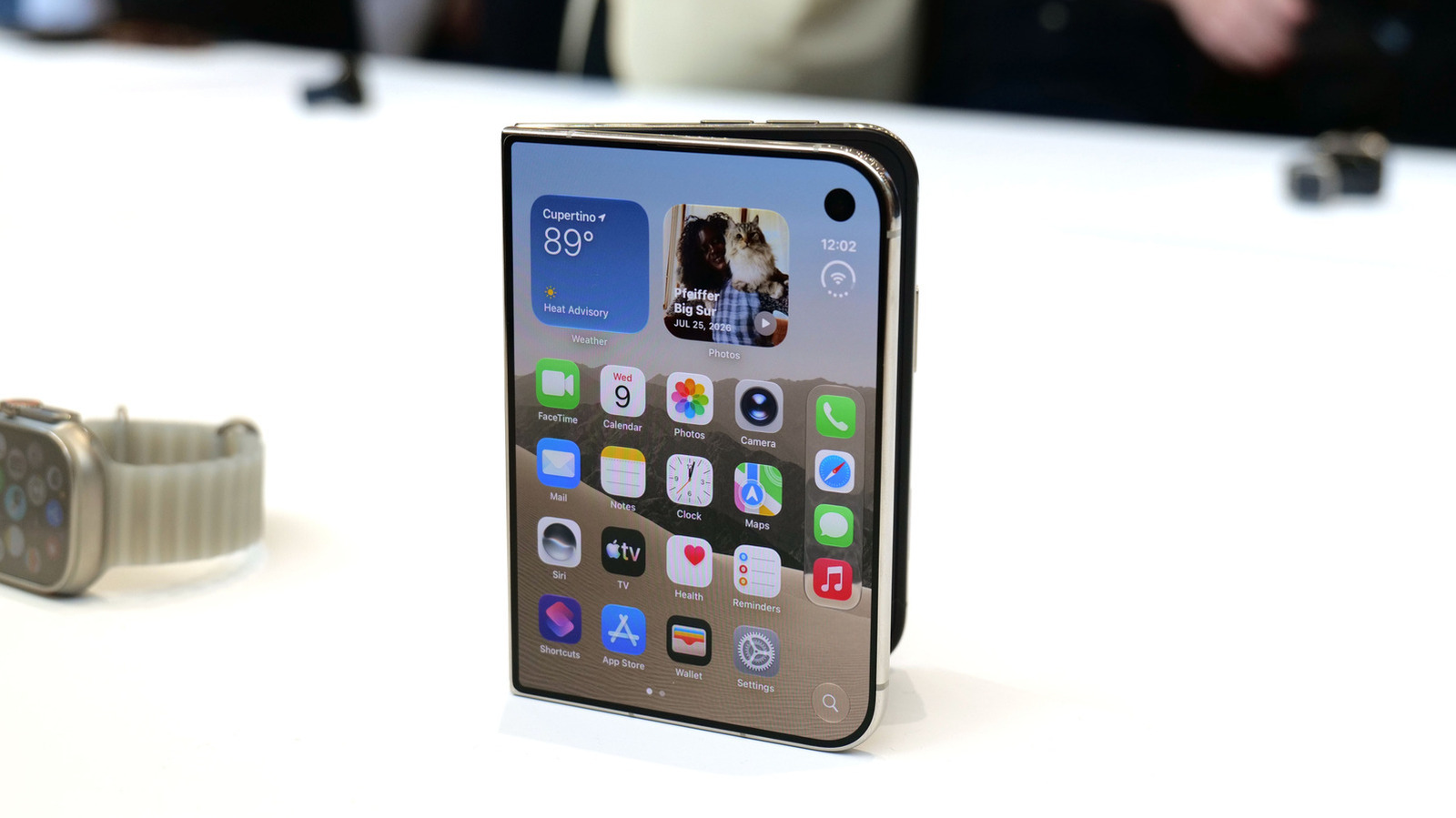
Apple iPhone Duo: A Daring Debut with Notable Compromises
Apple's highly anticipated iPhone Duo, priced at $2,000, has gone on pre-order. While hailed as "Apple's most exciting device in a decade" for its innovative foldable design and immersive display, it comes with significant drawbacks like the absence of FaceID and a premium camera.
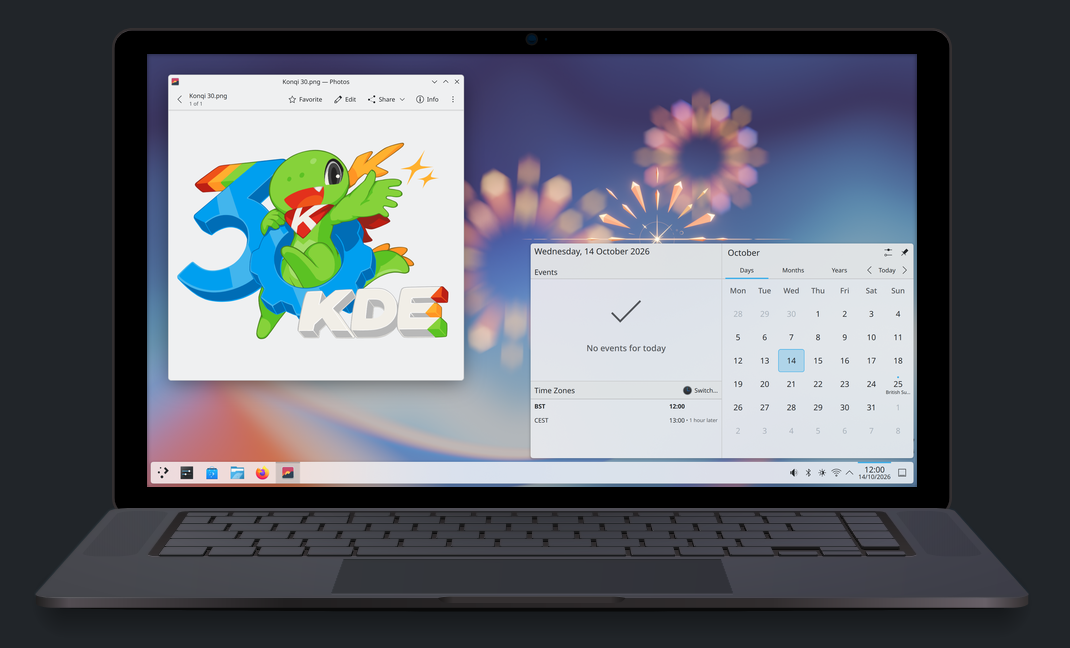
KDE Plasma 6.8: A Future-Focused 30th Anniversary Update
Quick Verdict KDE Plasma 6.8, arriving as the "30th Anniversary Edition," is a pivotal release that decisively pushes the desktop environment into the future. With a definitive farewell to native X11 sessions and a
Galaxy Watch One UI 9 Beta: Promising Progress, But Patience Needed
Galaxy Watch 8, Watch Ultra, and Watch 7 are receiving a new One UI 9 Watch beta build with bug fixes and a security patch. Active development signals progress, but a stable release date remains elusive.