
Android Auto Customizations: Drive Smarter, Not Harder
Android Auto has become an indispensable co-pilot for many, seamlessly integrating smartphone functionality into our vehicle's infotainment system. Yet, many users might be missing out on a host of powerful

Android Auto has become an indispensable co-pilot for many, seamlessly integrating smartphone functionality into our vehicle's infotainment system. Yet, many users might be missing out on a host of powerful customization options that can significantly enhance their driving experience. These aren't just cosmetic tweaks; they delve into efficiency, safety, and personal preference, making your car's display truly your own. After diving deep into ZDNET's breakdown of seven such changes, it's clear that a few minutes of setup can transform Android Auto from a helpful tool into an optimized driving companion.
Overview: Tailoring Your Digital Dashboard
Android Auto is designed to simplify access to navigation, communication, and media while driving, minimizing distractions. However, its out-of-the-box configuration may not perfectly align with every driver's habits or preferences. The beauty of these customizations lies in their ability to fine-tune the platform's appearance, operational behavior, and notification delivery. These modifications are generally straightforward, often found within your phone's settings or the Android Auto application itself, with some accessible via developer mode, yet all promising quick implementation.
Diving Into the Enhancements:
1. Customize Your App Launcher: Declutter for Clarity
The default Android Auto app launcher can feel cluttered with apps you rarely or never use while driving. This customization allows you to curate the displayed applications, removing unnecessary icons and prioritizing your most frequently used tools. By heading to your phone's Settings, searching for "Android Auto," and then "Customize Launcher," you gain the ability to check or uncheck apps and even set a custom order instead of the default alphabetical arrangement. The benefit here is immediate: less scrolling, quicker access to essentials like navigation or music, and a cleaner, less distracting interface. While it requires an initial investment of a few moments, the long-term gain in efficiency is substantial.
2. Pick Day or Night Mode Permanently: Visual Comfort on Your Terms
Android Auto typically adjusts its display mode (day or night) automatically based on factors like time of day, ambient light, or even your car's headlights. For those with a strong preference or specific visual needs, this adaptive behavior isn't always ideal. Users can now toggle Android Auto's day/night mode to a permanent "day" or "night" setting, or opt for "Phone controlled" to mirror their smartphone's display preferences. This offers greater consistency and can improve visibility and reduce eye strain, especially for drivers who find the automatic switching jarring or sub-optimal in certain conditions. The only potential downside is manually overriding the system might lead to reduced visibility if, for example, you force day mode at night.
3. Set Custom Routines and Shortcuts: Automate Your Drive
Perhaps the most powerful and versatile customization, routines and shortcuts allow Android Auto to become an even smarter assistant. You can add direct shortcuts to your launcher for calling specific contacts or executing complex Gemini commands. Imagine a "leaving home" shortcut that, with a single tap or voice command, simultaneously sends a text to a loved one, runs your robot vacuum, adjusts your smart thermostat, locks the doors, and turns off house lights. This level of automation significantly boosts convenience and safety by reducing manual interactions while driving. The primary 'con' is the initial effort required to set up these routines, but once configured, they offer unparalleled hands-free control and integration with your smart home ecosystem.
4. Fine-Tune Text Notifications: Balance Information and Safety
Notifications can be a major source of distraction. Android Auto provides impressive granular control over how text messages are handled. Users can enable or disable text notifications entirely, choose to hide or show group conversations, decide whether to display the first line of a message, control notification chimes, grant or deny Gemini access to messages, and even have Gemini summarize lengthy texts. This level of control is a huge win for reducing distraction and enhancing privacy. It allows drivers to tailor the system to their comfort level, ensuring important messages are seen without overwhelming the screen with unnecessary details, thereby promoting safer driving habits.
5. Switch the Location of Media Controls: Optimize for Accessibility
By default, Android Auto places navigation media controls on the driver's side of the screen. However, if your primary interaction involves music or podcast controls, you might find reaching across the screen cumbersome. Within the "Advanced" section of the Android Auto app settings, there's an option to toggle the placement of media controls, moving them closer to the driver or prioritizing navigation. This subtle but effective change optimizes the interface for your most common use case, making essential controls more ergonomically accessible and reducing reaching or looking away from the road.
6. Make Your Car Match Your Phone: Personalize Your Aesthetics
For those who appreciate visual continuity, Android Auto allows you to ditch the default geometric background and adopt your phone's home screen wallpaper as the backdrop for your car's app grid. This setting can be found under the Display section of Android Auto settings on your phone or directly on your car's screen. While it doesn't offer functional improvements, it provides a pleasant aesthetic personalization, making the in-car experience feel more like a seamless extension of your smartphone. It's worth noting that this feature does not support live or animated wallpapers.
7. Stop the Startup Chaos: Control Your Audio Environment
Android Auto's habit of automatically resuming audio playback upon startup can be a double-edged sword. While convenient for uninterrupted listening, it can lead to "startup chaos" if the last played content is not suitable for passengers or current circumstances. A simple toggle within the settings allows you to turn off "Start music automatically." This gives you full control over when and what audio begins playing, preventing unexpected music, podcasts, or news from blasting the moment you start your car. This is particularly beneficial for families or those who listen to diverse content.
Ease of Implementation
One of the most appealing aspects of these customizations is their relative simplicity. As highlighted by ZDNET, most changes are accessible within minutes through your phone's settings or the Android Auto app. While some might require navigating to developer options, the process is generally user-friendly and doesn't demand advanced technical knowledge. The impact far outweighs the minimal effort.
Comparison to Alternatives
The source content focuses exclusively on optimizing the Android Auto experience itself, rather than comparing its customization capabilities against alternative platforms like Apple CarPlay. Therefore, a direct comparison table for specific features is not applicable based on the provided information. The value here lies in improving an existing, widely-used platform.
Verdict and Recommendation
These seven Android Auto customizations are not just optional extras; they are essential tweaks for anyone seeking a more efficient, safer, and personalized driving experience. From decluttering the app launcher and fine-tuning notifications to leveraging powerful automation routines, each modification contributes to a more user-centric infotainment system. The cumulative effect is a smarter, less distracting, and ultimately more enjoyable time behind the wheel. We highly recommend that all Android Auto users explore these settings and tailor their setup to match their individual driving habits and preferences. It's a quick investment that pays significant dividends in daily functionality.
FAQ
Q: Are these Android Auto customizations difficult to implement?
A: No, most of these customizations are straightforward and can be found within your Android phone's settings or the Android Auto app. Many can be changed in just a few minutes, even those that might be tucked away in developer mode.
Q: Can these changes improve driving safety?
A: Absolutely. Customizations like fine-tuning text notifications to reduce visual clutter, organizing your app launcher for quicker access to essential apps, and setting up routines for hands-free actions can significantly minimize distractions, thereby contributing to a safer driving experience.
Q: Will applying these customizations affect my phone's performance or battery life?
A: The customizations discussed primarily relate to the user interface and operational logic within Android Auto. They are unlikely to have a noticeable negative impact on your phone's performance or battery life, as they are part of the platform's core settings and designed for efficient operation.
Related articles
Android 17 QPR2 Beta 7.1: The Performance Relief You've Been Waiting
Android 17 QPR2 Beta 7.1: Finally Fixing the QPR1 Performance Woes Verdict: Android 17 QPR2 Beta 7.1 is a crucial and highly anticipated software update for Google Pixel users, specifically targeting and resolving the

DJI Solo Video Setups: Smart Choices for Lone Creators
This review delves into DJI's recommended solo video setups, highlighting the Osmo Pocket 3 Creator Combo as a top pick for its integrated camera, gimbal, and mic. It also covers stabilizers like the Osmo Mobile 8 and RS 4, and the DJI Mic Mini series for enhanced audio, providing honest pros, cons, and clear buying advice.

Ars Technica's Rocket Report: Your Essential Space Industry Briefing
Quick Verdict Ars Technica's Rocket Report, presented by veteran space reporter Stephen Clark, offers an invaluable and meticulously organized weekly (or similar frequency, implied by "Edition 9.15") digest of the most
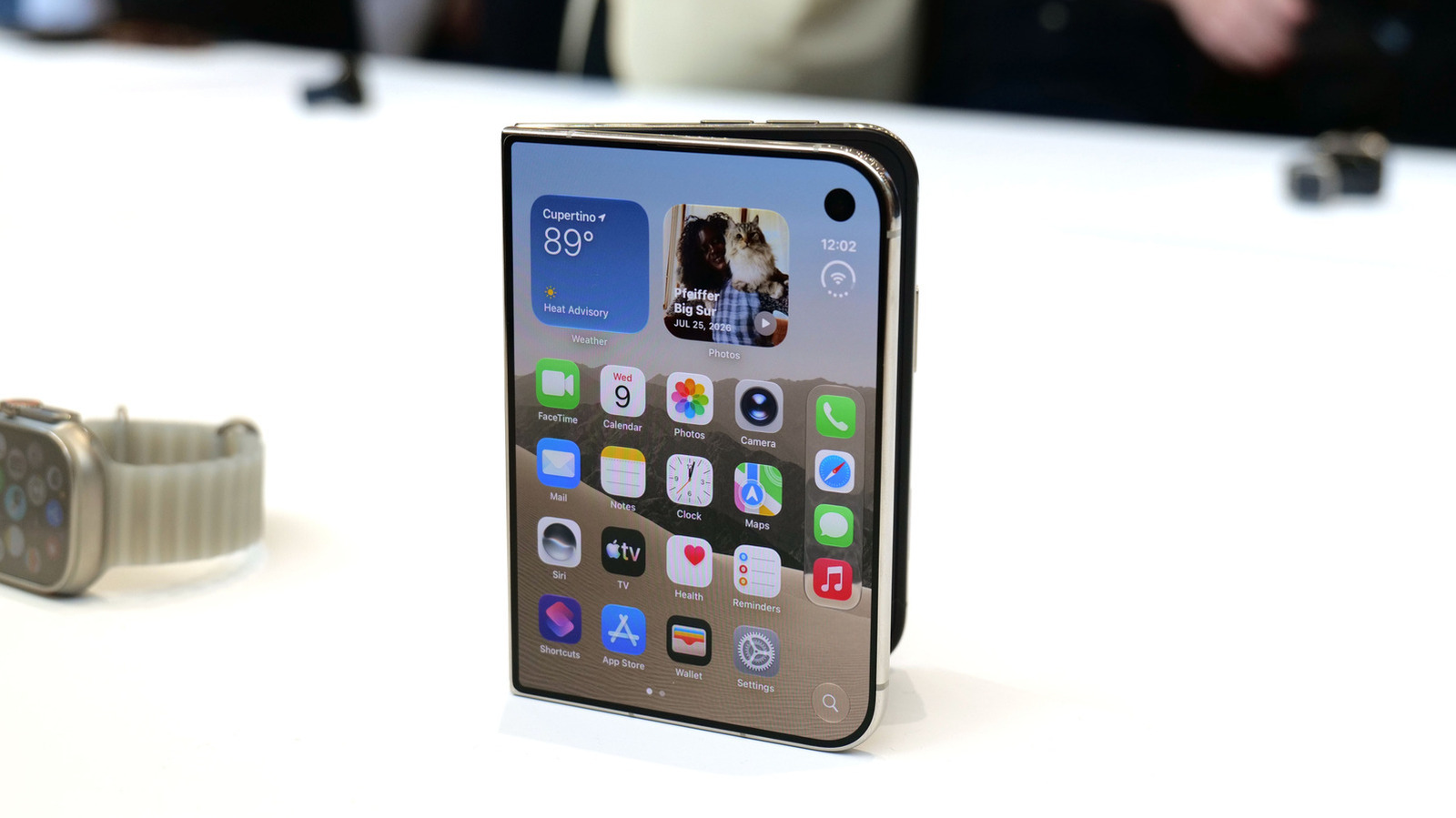
Apple iPhone Duo: A Daring Debut with Notable Compromises
Apple's highly anticipated iPhone Duo, priced at $2,000, has gone on pre-order. While hailed as "Apple's most exciting device in a decade" for its innovative foldable design and immersive display, it comes with significant drawbacks like the absence of FaceID and a premium camera.

Amazon Prime Video Launches AI-Powered Prime 360 for NBA Coverage
Amazon Prime Video is elevating its NBA coverage with the introduction of Prime 360, an AI-powered replay system offering immersive, 'fly through' views of the action. Kicking off its second season, Prime Video also adds Yahoo fantasy integration and gains exclusive Eastern Conference Finals rights, expanding its tech-driven sports broadcast. The new features aim to deliver a unique and interactive viewing experience for basketball fans.
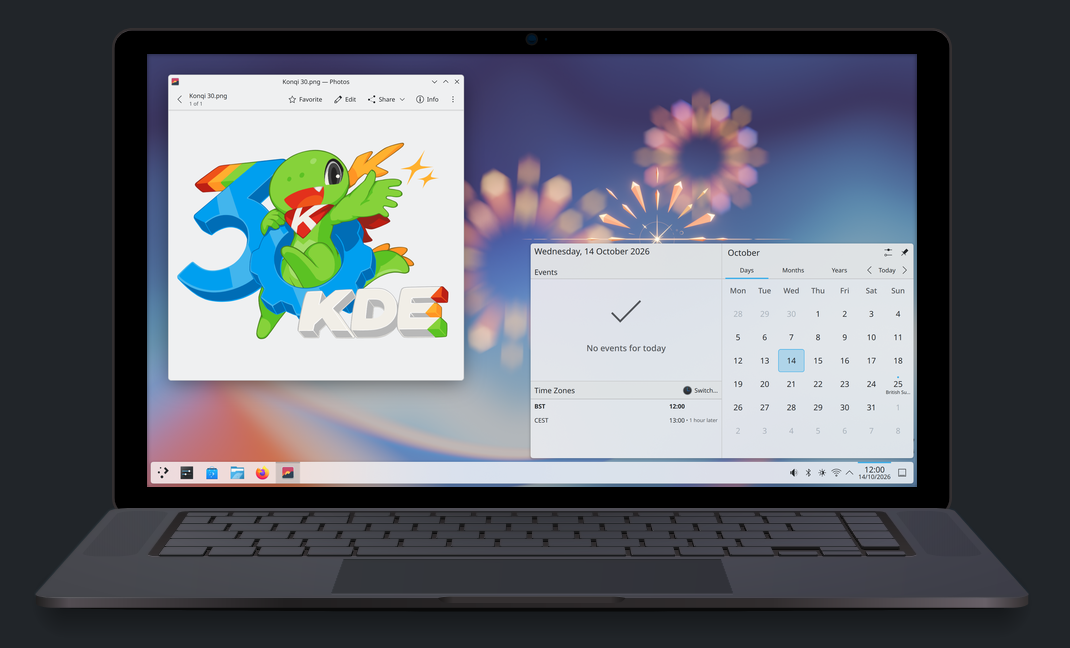
KDE Plasma 6.8: A Future-Focused 30th Anniversary Update
Quick Verdict KDE Plasma 6.8, arriving as the "30th Anniversary Edition," is a pivotal release that decisively pushes the desktop environment into the future. With a definitive farewell to native X11 sessions and a